
It offers a modern interface with HTML support, message filters, an address book and basic security features.
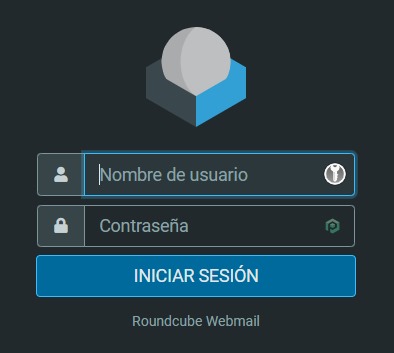
1. Log in
Enter the webmail URL, your full email address, your password, and click the login button.
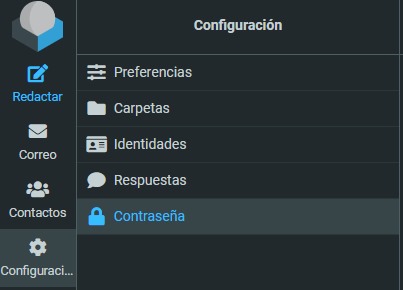
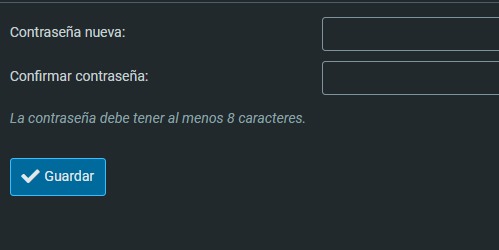
2. Change your password
Go to Settings → Password, type the new password twice and save. It should have at least three words separated by symbols and numbers.
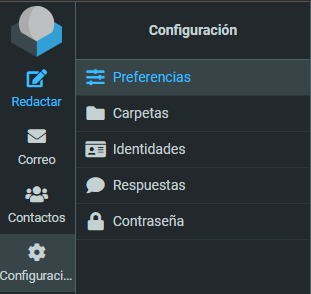
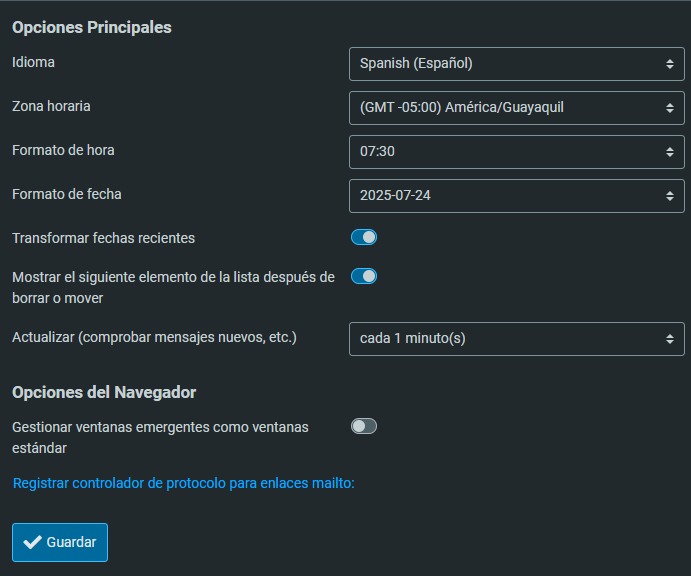
3. Set timezone and language
Go to Settings → Preferences → User interface, select your timezone (e.g. America/Guayaquil), adjust the language and save.
4. Set up your email signature
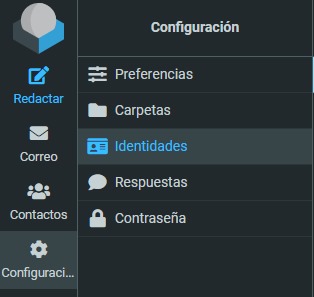
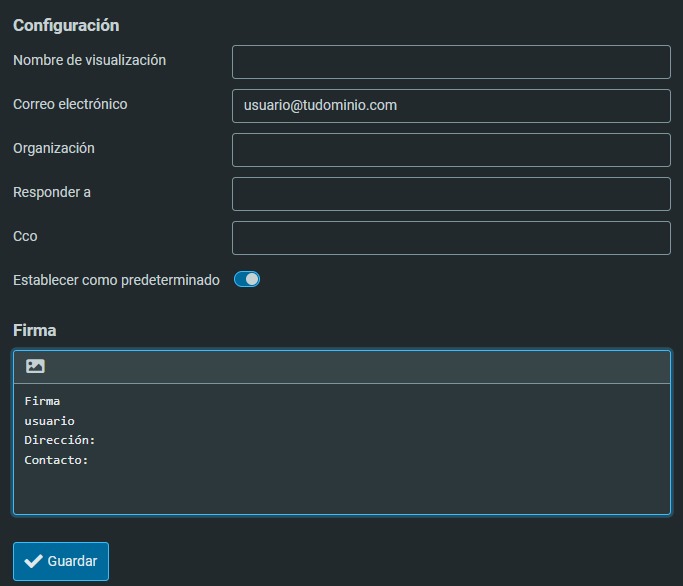
Go to Settings → Identities, select your account, add text or turn on the editor to include images, and save.
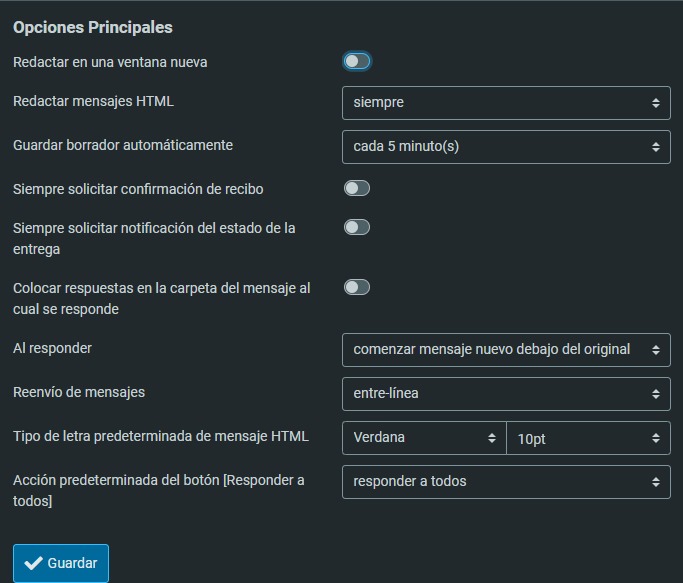
5. Turn on HTML formatting
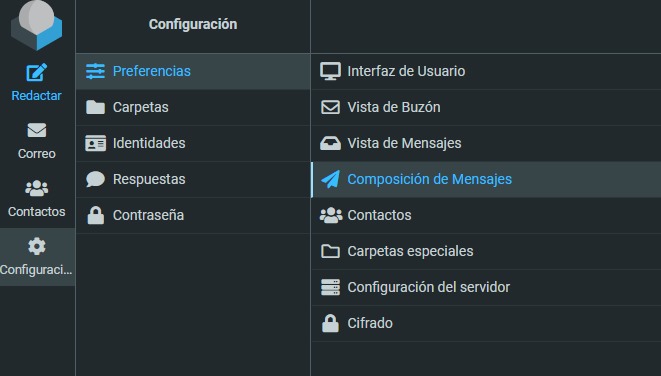
Under Settings → Preferences → Composing messages, choose HTML as the composing format, customize font size and auto-signature, and save.
6. Add contacts
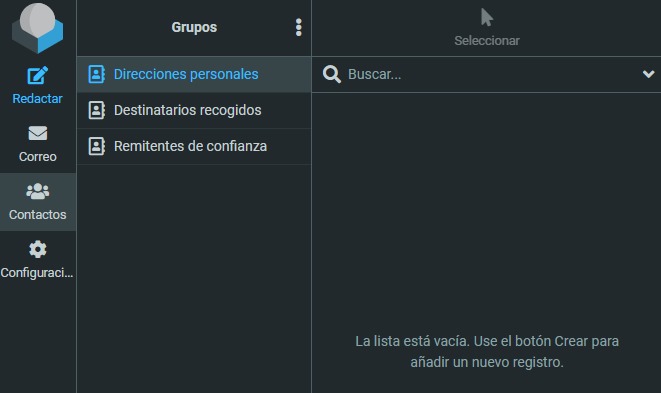
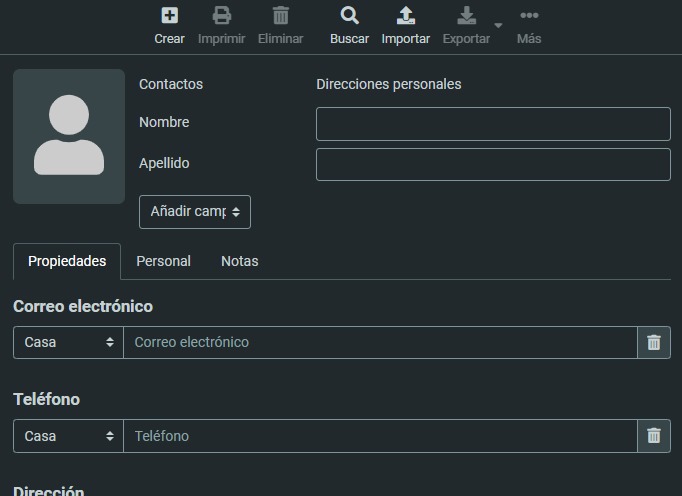
Click the Contacts icon, use the new contact button, enter the details and save. You can also create groups for mass communications.
7. Organize your messages
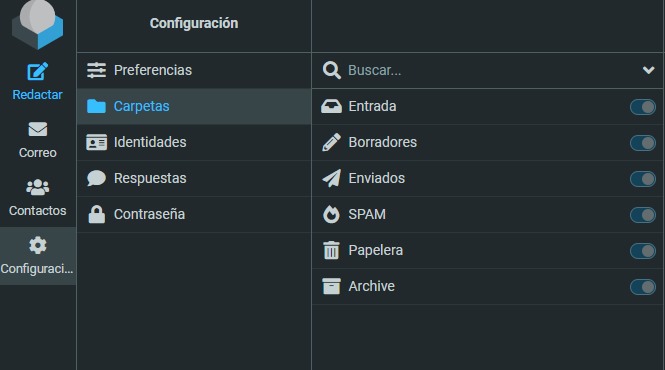
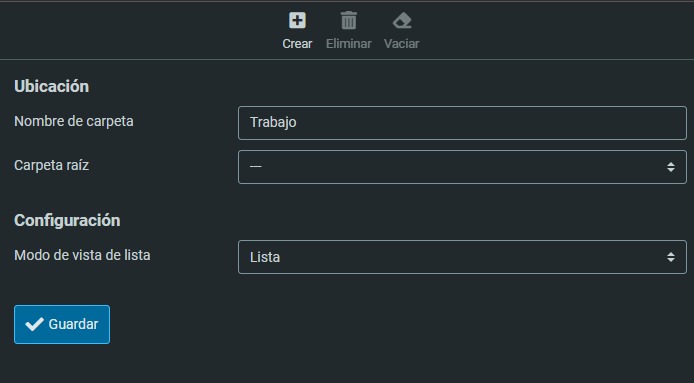
Go to Settings → Folders to create new folders, choose which ones to show in the sidebar, and save.
Security recommendations
- Always use HTTPS
- Log out when you're done
- Change your password regularly
- Avoid opening suspicious attachments
- Turn on two-factor authentication when available
- Keep your browser up to date
- Never save your password on public computers