
1. How to log in
Enter your server address, your username and your password to access the system.
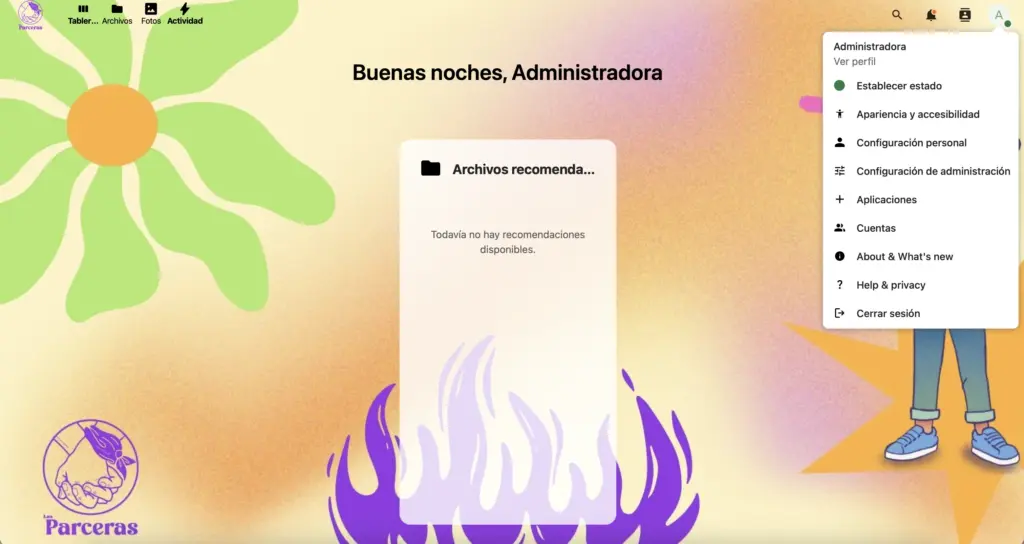
2. Your personal area or Dashboard
The main panel shows customizable widgets with recent files, calendar events and quick notes. The left sidebar holds all the apps (Files, Contacts, Calendar, Photos), and the user menu offers profile management, status, appearance, account settings, user administration and sign out.
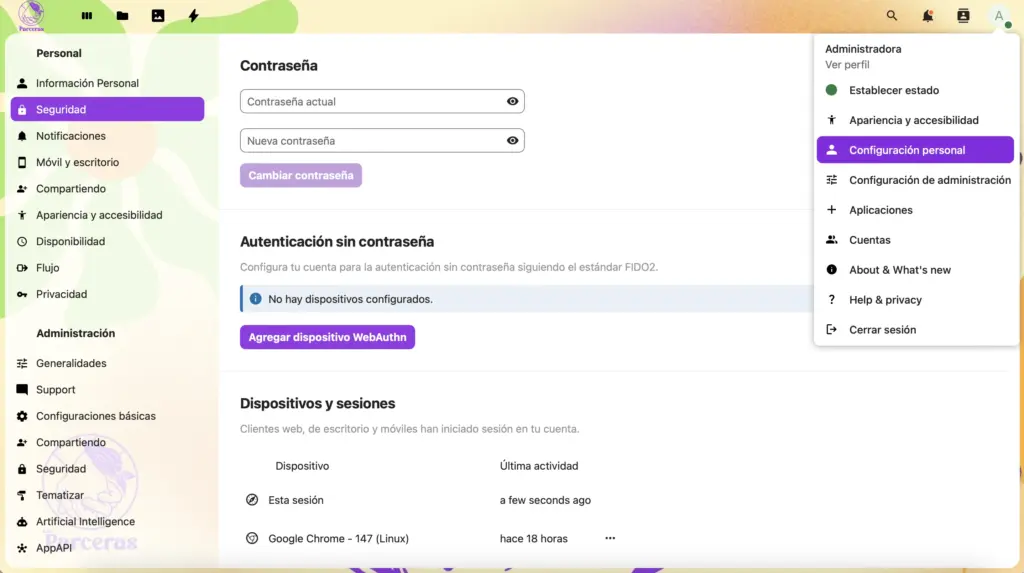
3. User preferences and changing your password
In your personal settings you can adjust language, timezone and notifications. Change your password from the Security section, and turn on two-factor authentication for extra protection.
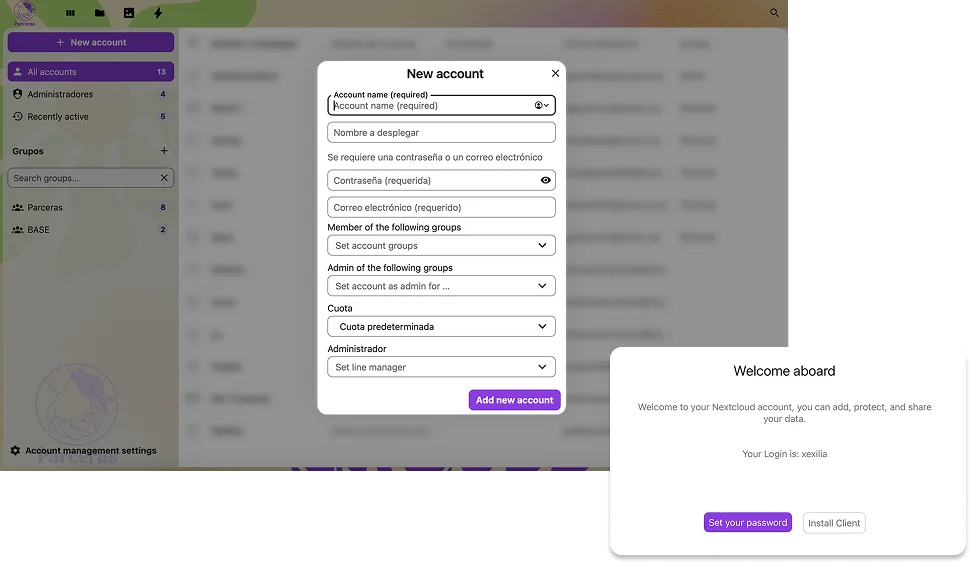
4. Add users to your cloud
Create new accounts from the admin panel by entering a name and email. You can set a password manually or let the person create their own via email verification.
5. Start by getting organized with folders
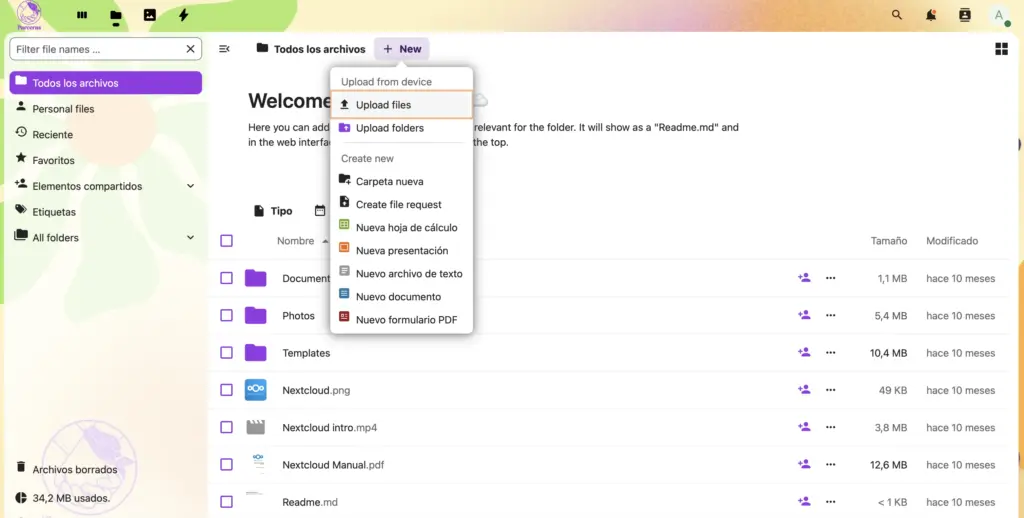
Organize your files by creating folders from the Files app, using the "+" button.
6. Start uploading your files
Upload files with the upload button or simply by dragging them into the browser window.
7. Share your files
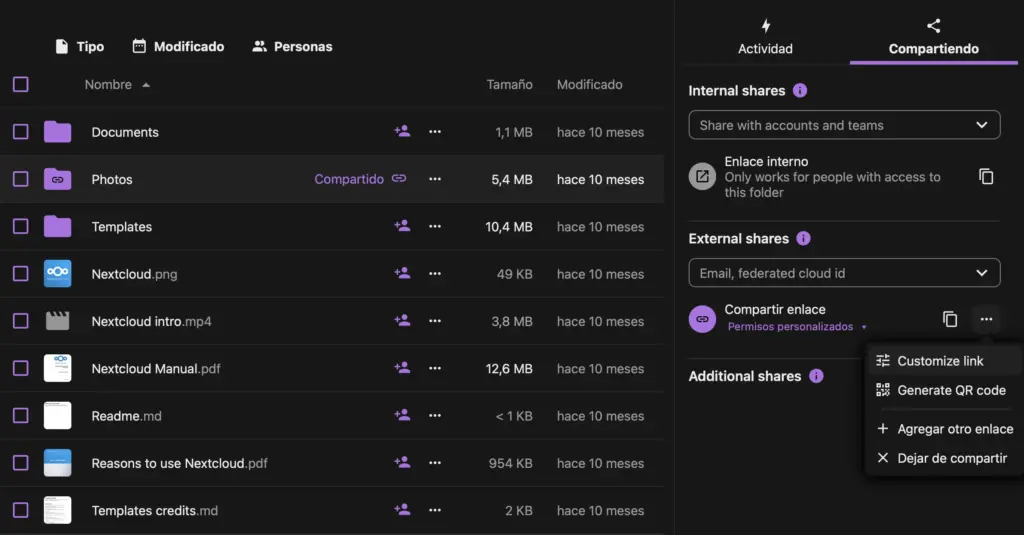
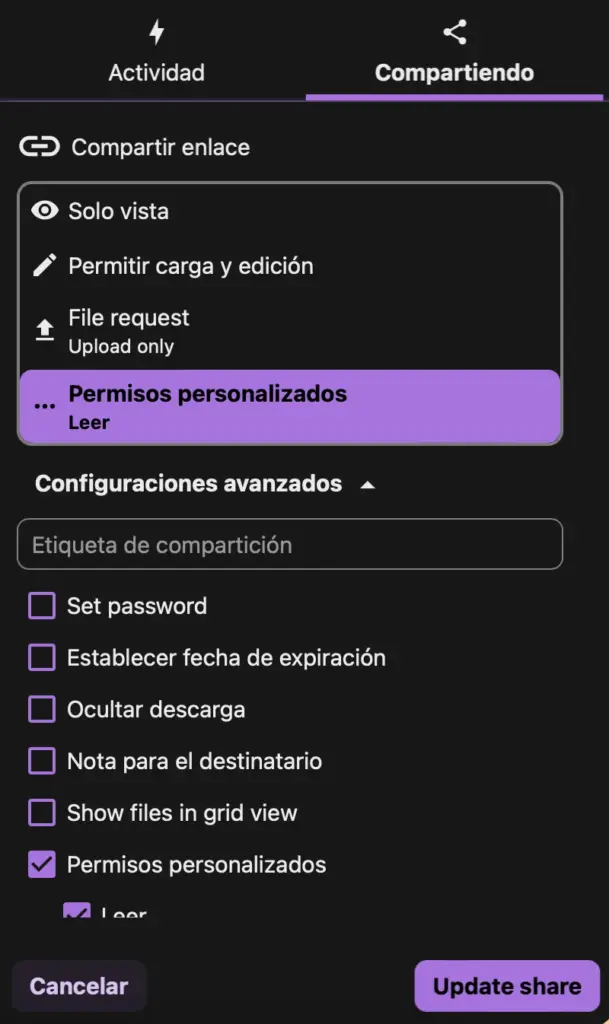
Turn on public links with an optional password, an expiration date, and view or edit permissions. For extra security, it's best to share directly with other Nextcloud accounts instead of public links.
8. Sync your PC
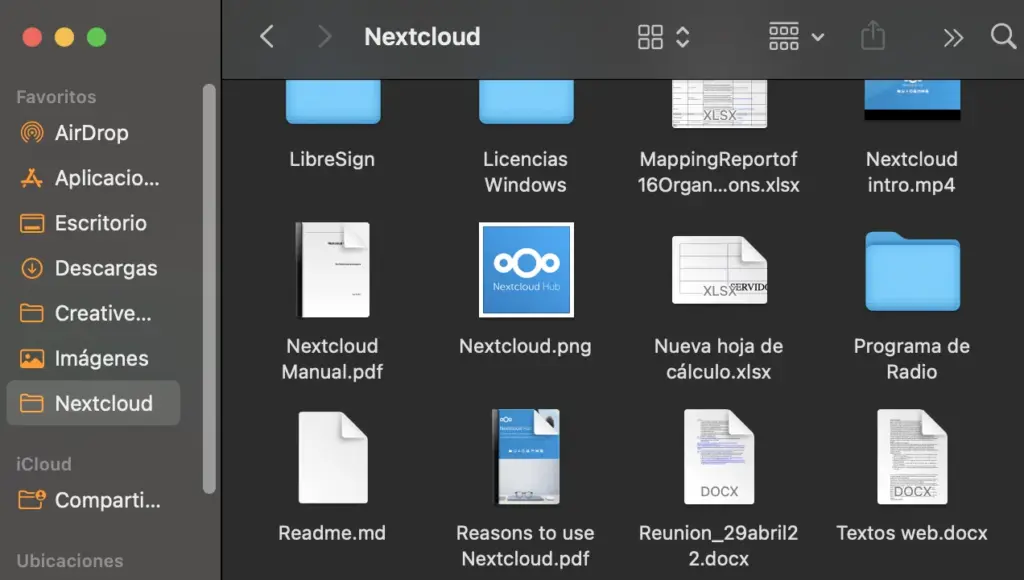
Download the desktop client for Windows, Mac or Linux and automatically sync folders between your computer and the cloud.
"Pro" features you should know
- Version history: recover earlier versions of a document
- Trash: recover files after deleting them
- Global search: indexes file names and document contents