1. Install KeePassXC
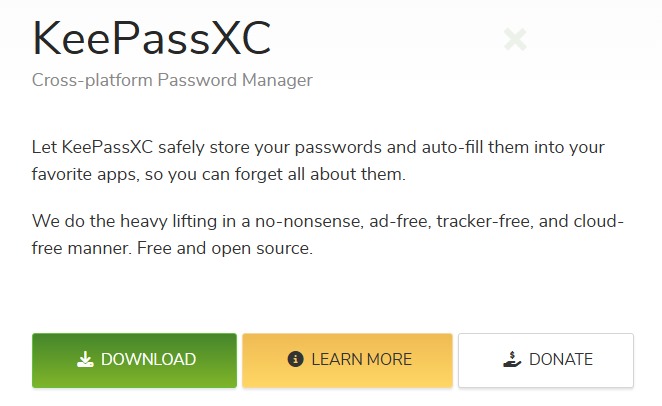
Download it from the official site keepassxc.org, available for Windows, macOS and Linux. Follow the installation instructions specific to your operating system.
2. Create a password database
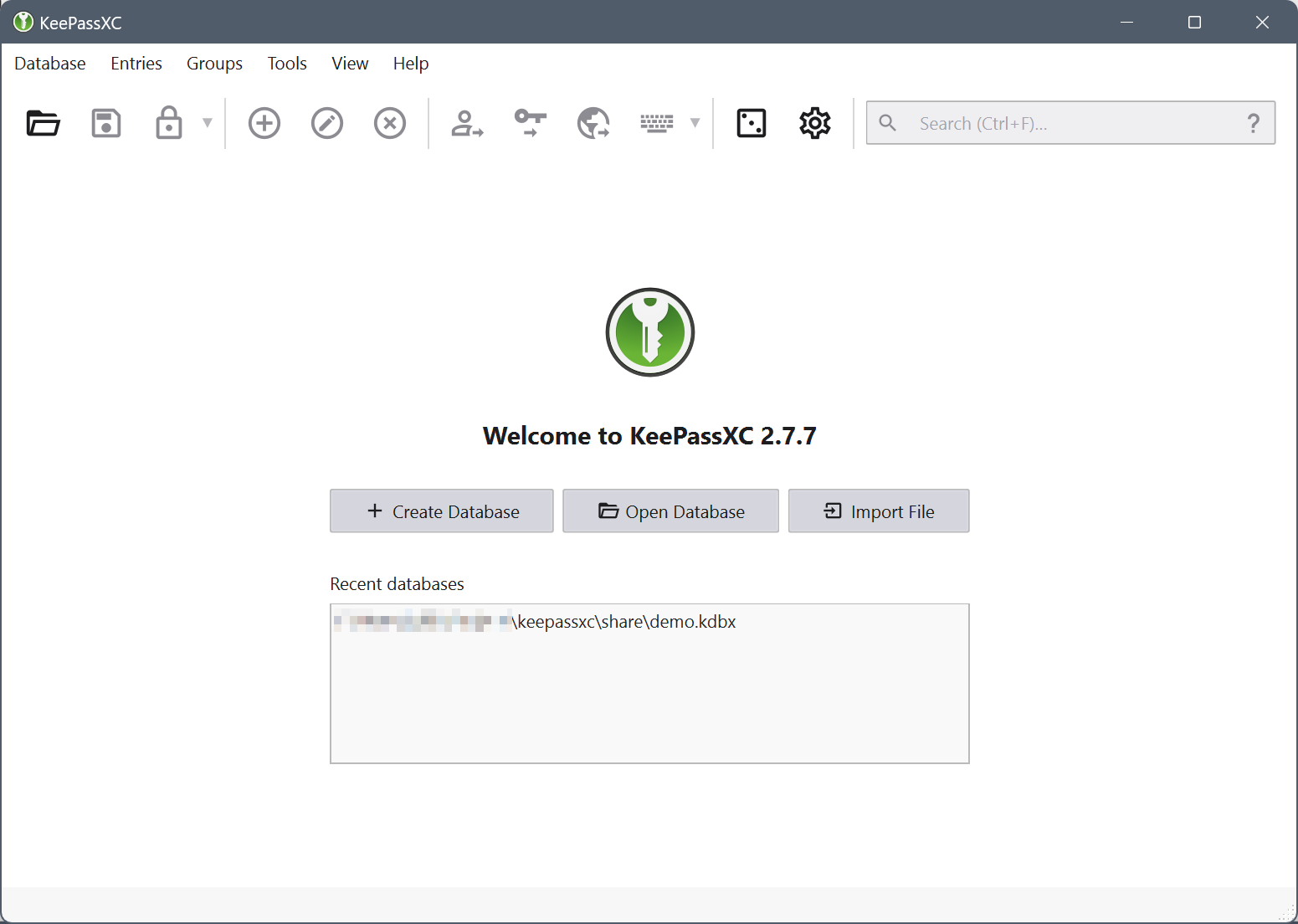
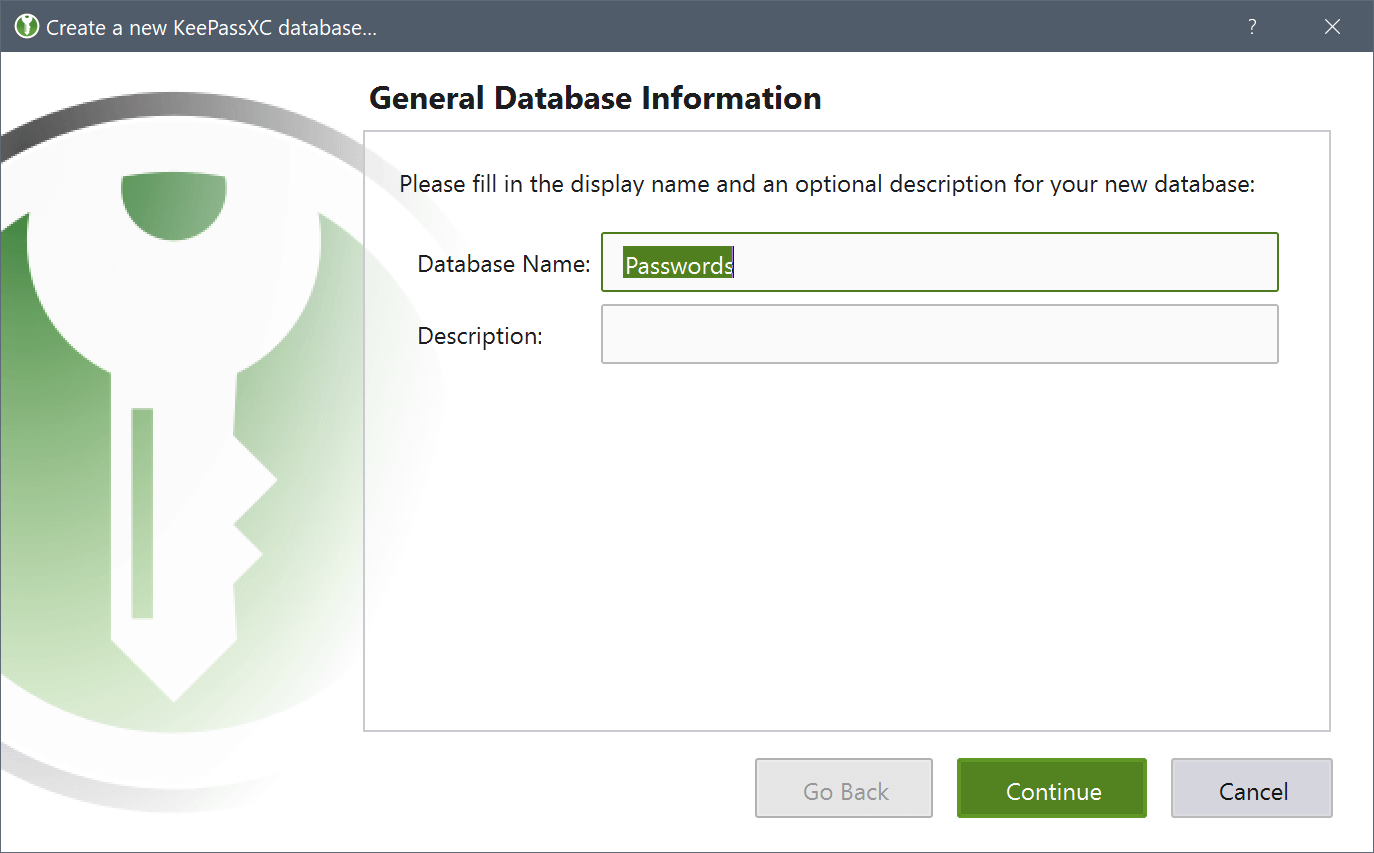
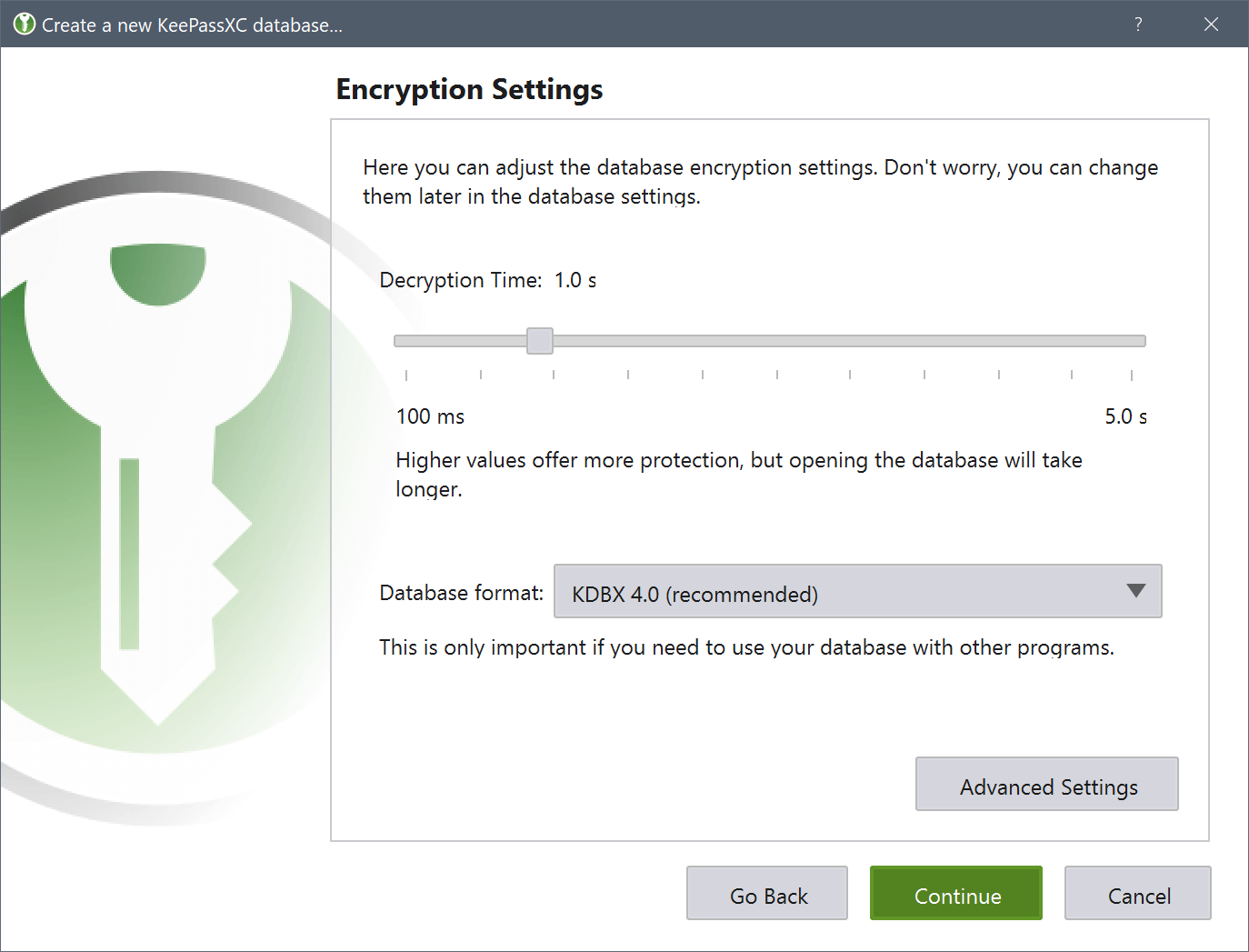
Open the app, choose the option to create a new database, give it a file name, choose where to save it (it's saved as a .kdbx file), set a master password, complete the wizard and save the database.
3. Add passwords
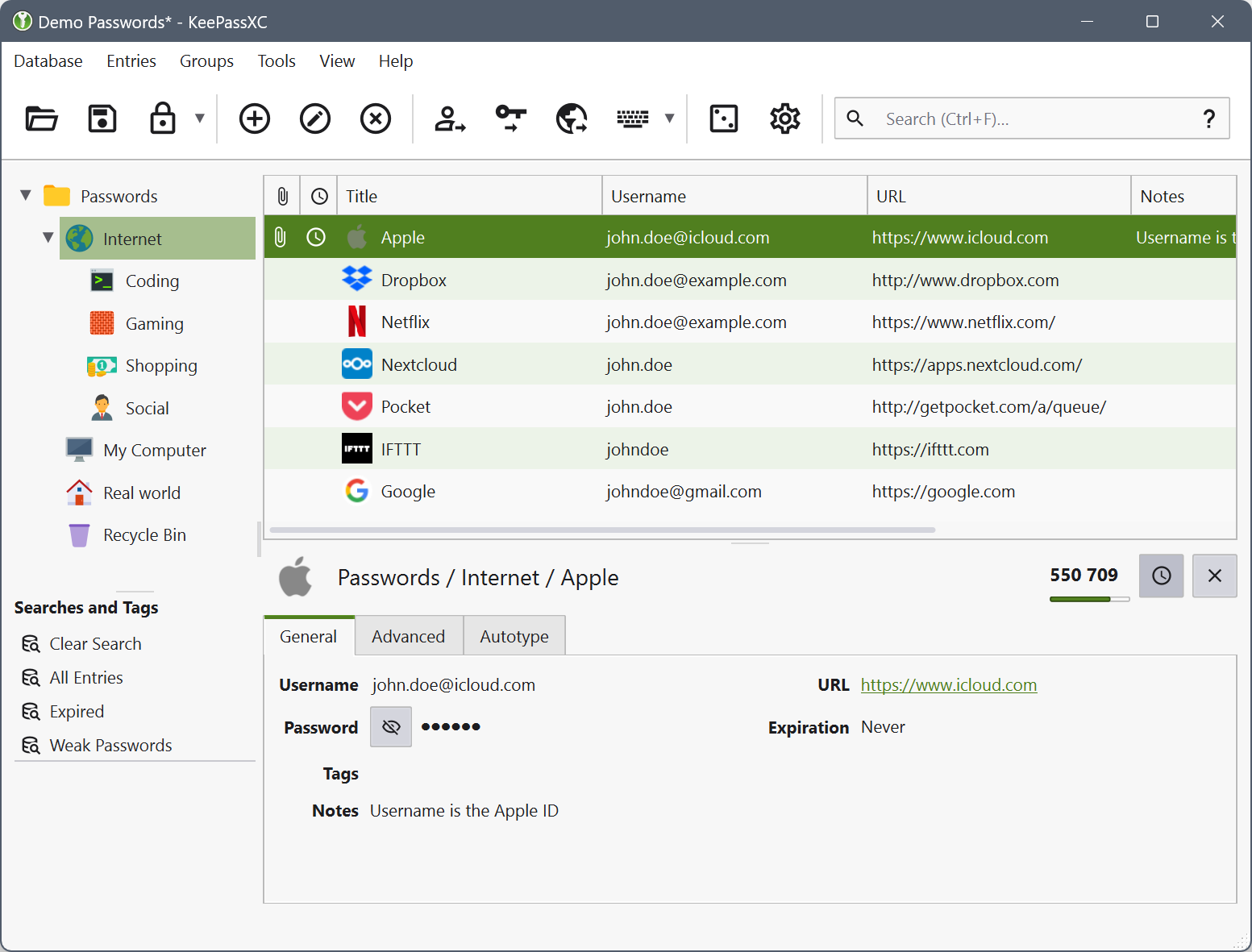
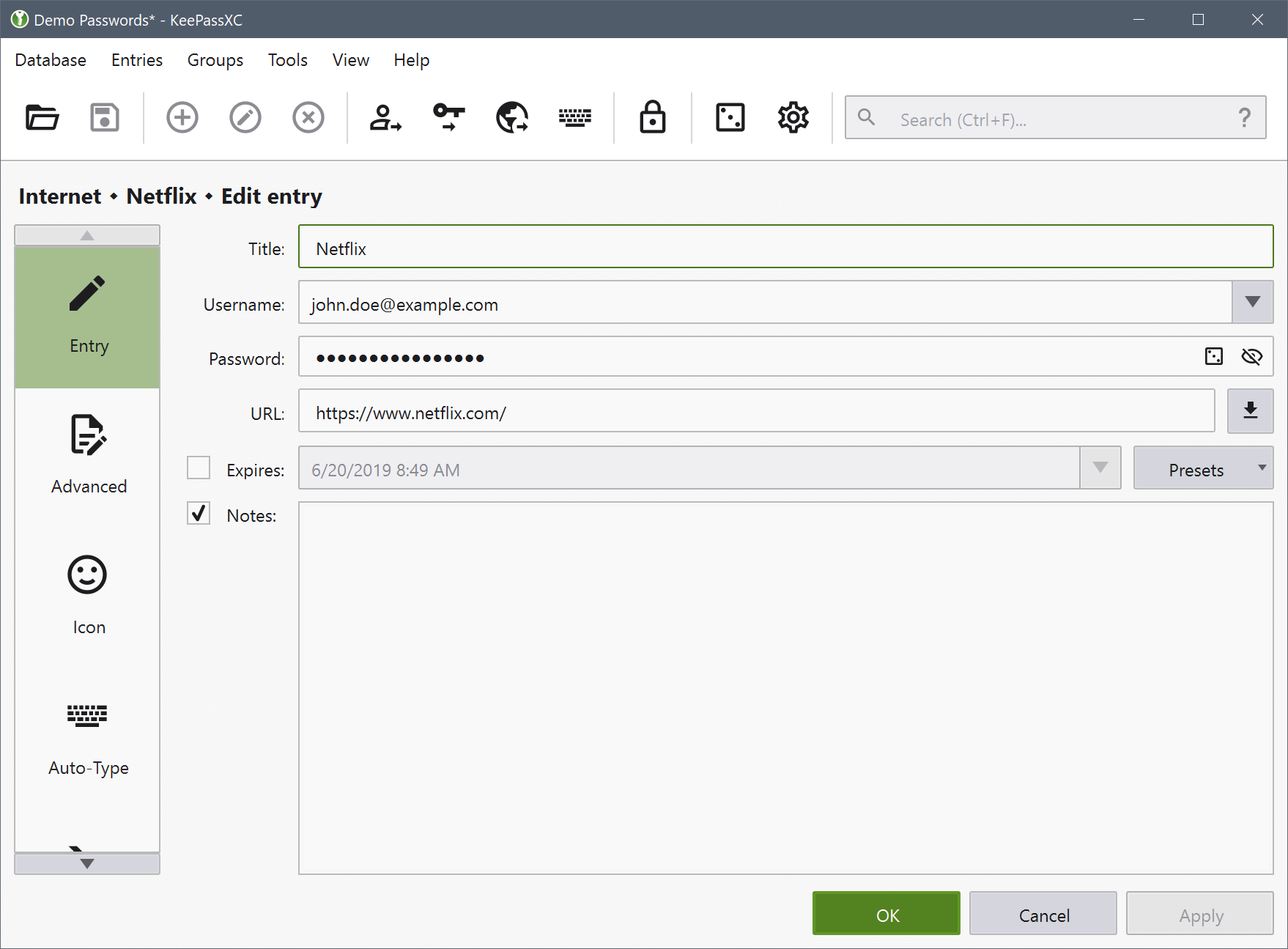
Open your database with the master password, click "Add entry", enter the title, username, password and URL, and save the new entry.
4. Use the password generator
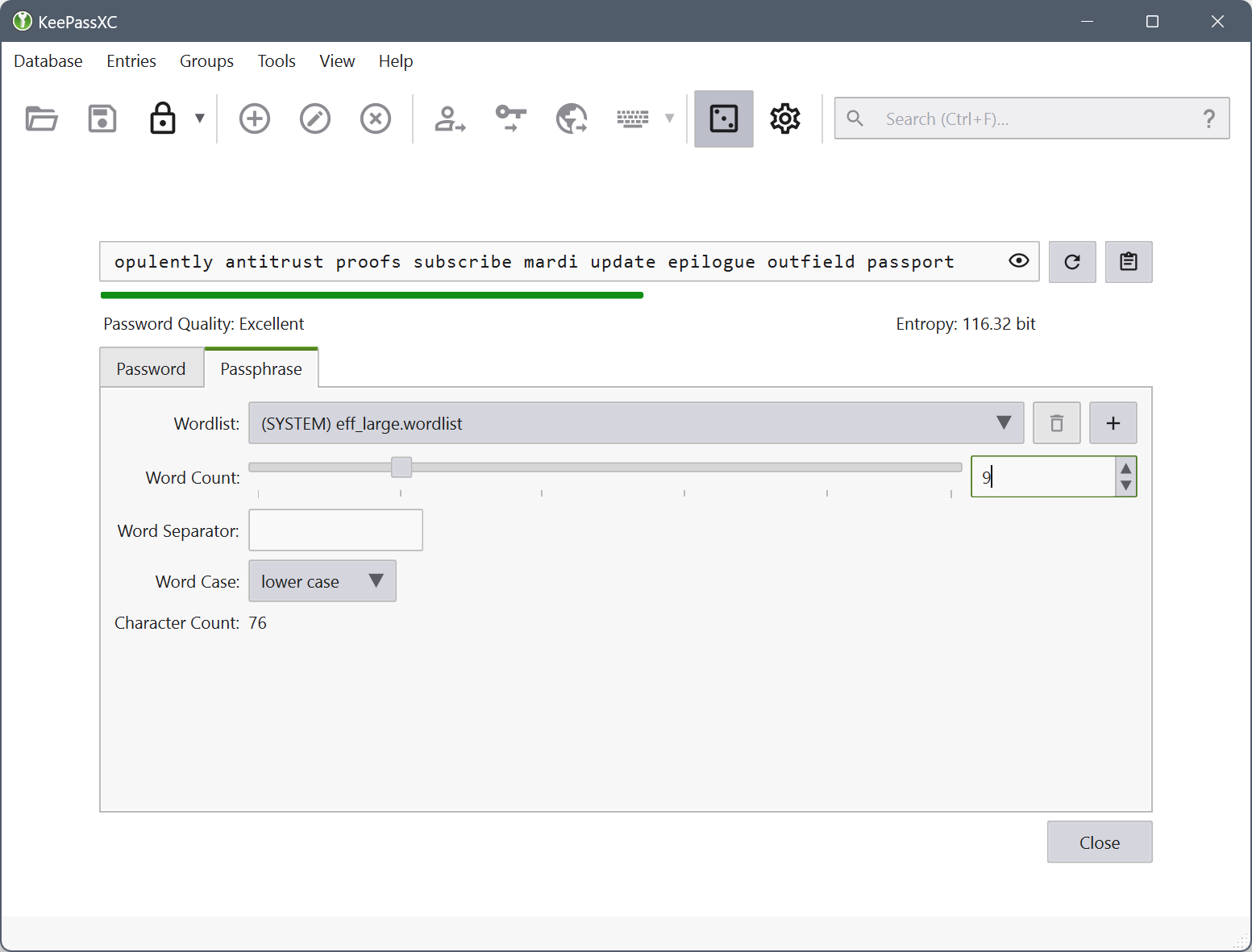
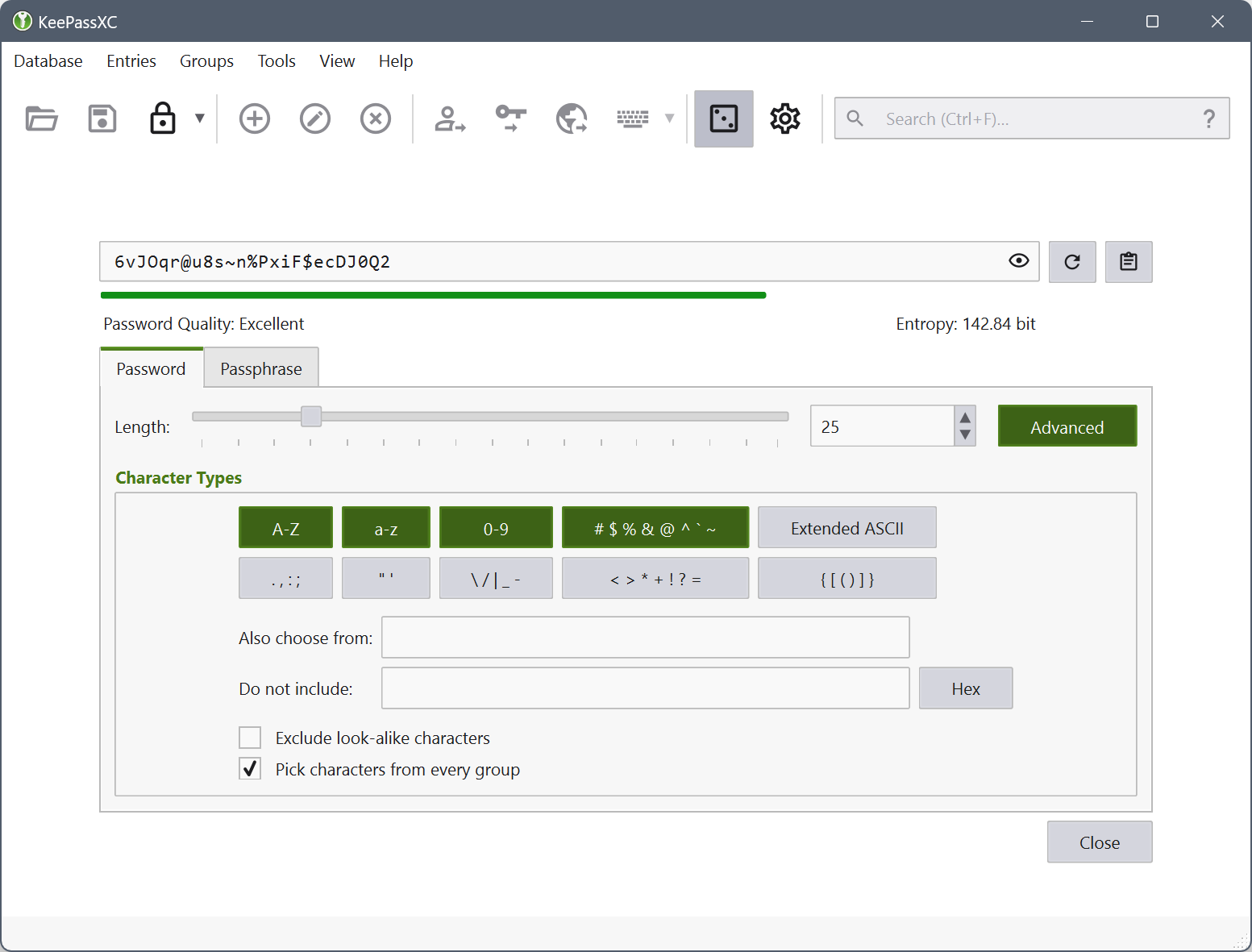
Access the "Password generator" from the top menu, customize the length and character types (uppercase, numbers, symbols), and copy the generated password.
5. Browser integration (optional)
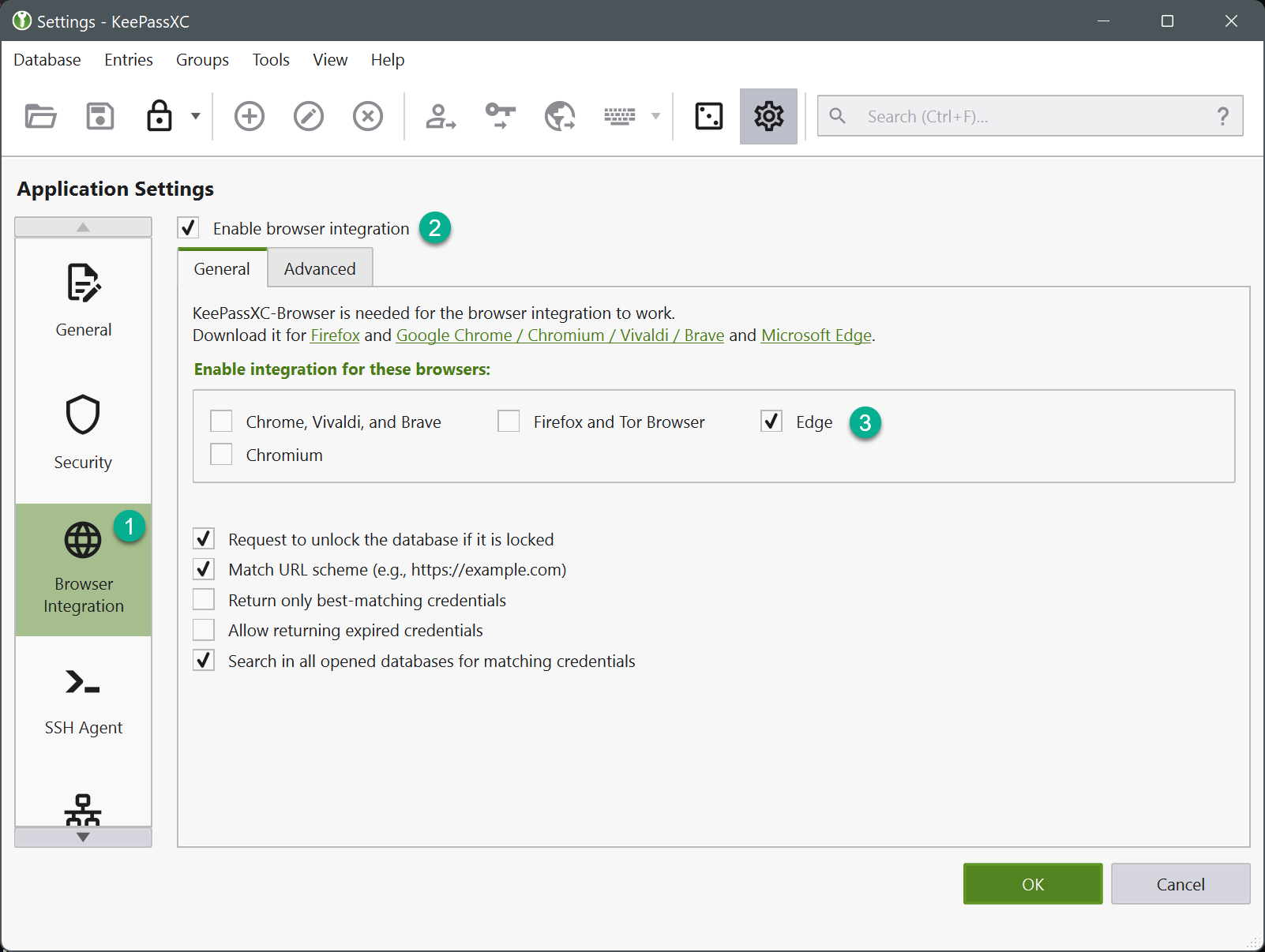
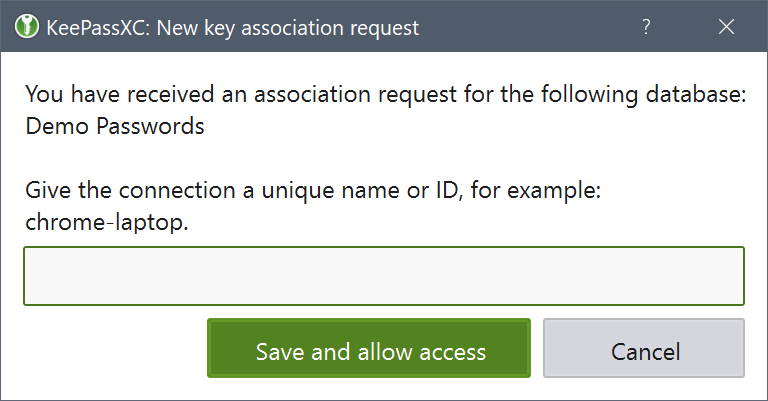
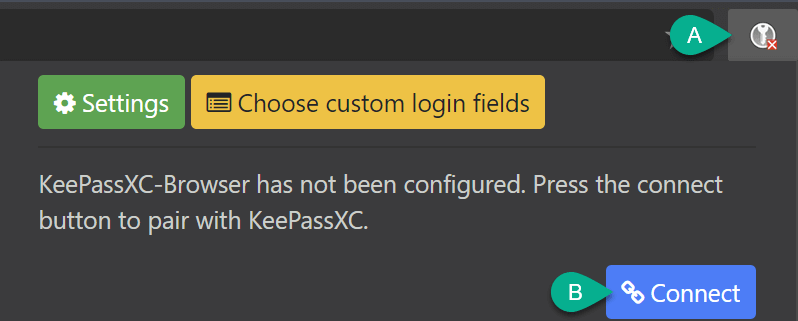
Install the KeePassXC-Browser extension in your browser, turn on integration under Tools → Settings → Browser integration, follow the linking instructions, and use the extension for autofill.
6. Backup and sync
Manually copy the .kdbx file to external storage or a cloud service. Sync between devices using platforms like Nextcloud, with additional encryption for cloud storage.
7. Final tips
- Lock KeePassXC when you step away from the computer
- Keep the app updated
- Avoid storing the master password on insecure devices