
1. Protect access to the account
- Use long, unique passwords combining letters, numbers and symbols
- Store credentials in a password manager (Bitwarden, KeePassXC)
- Never share passwords over messages or email
Two-factor authentication (2FA)
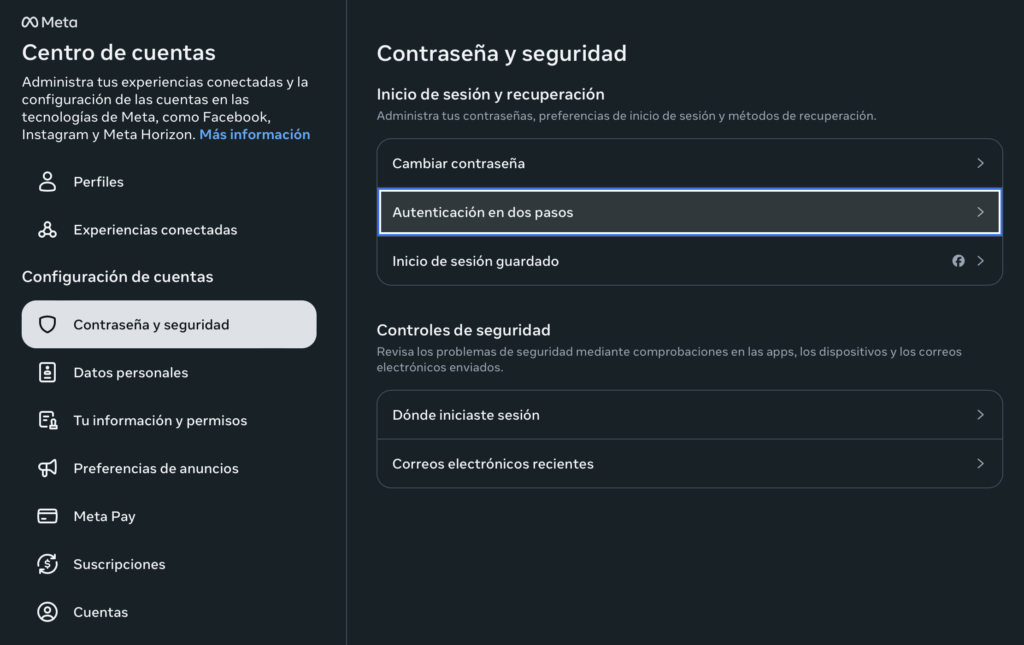
- Turn it on under Accounts Center → Password and security → Two-factor authentication
- Use authenticator apps (2FAS, Authy, Aegis) instead of SMS, which is vulnerable to interception
- Turn off random approval notifications ("Is this you?")
- Limit the second factor to 2 or 3 trusted people
- Store recovery codes somewhere encrypted or offline
Screen lock
- Android: turn on fingerprint unlock
- iPhone: turn on Face ID or Touch ID
- Set the lock to "Immediately" for maximum security
2. Manage your team's access
Use Meta Business Suite to grant editing permissions without sharing the password. Revoke access immediately when someone leaves the team. Avoid linking the account to personal profiles; use an institutional email.
3. Protect your team's and sources' privacy
Avoid showing faces, precise locations or sensitive data when covering risky situations. Review location and camera permissions on the devices you use.
4. Control public interaction
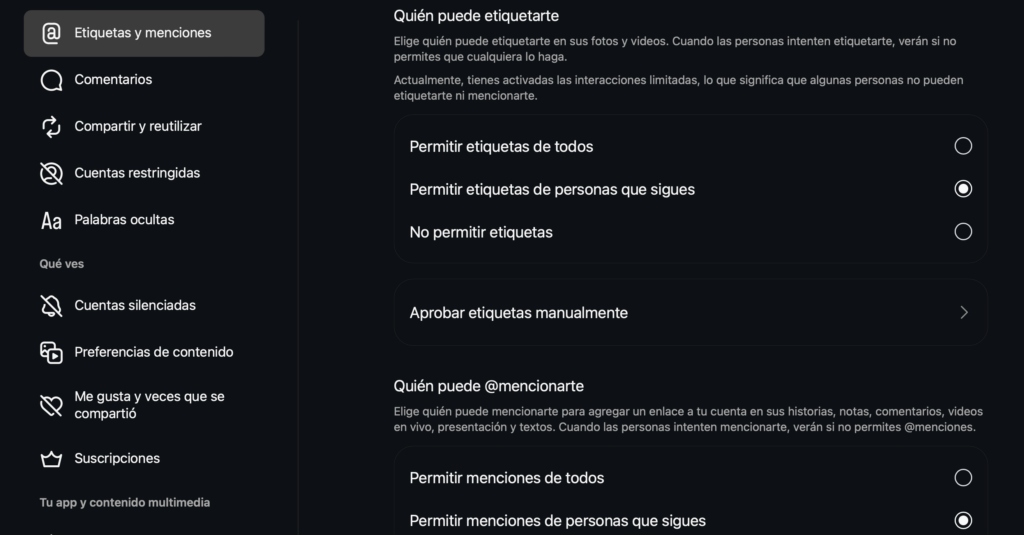
Configure who can comment, tag or mention your account from Settings and privacy. Restrict or block people generating harassment, and document the evidence.
5. Monitor logins and alerts
Review active devices in the Accounts Center. Turn on security alerts by email, not SMS. Turn off push notifications for login approval.
6. Review permissions and backups
Remove access for untrusted external apps from the Accounts Center. Download backups periodically from Settings.
7. In case of a hack or account lockout
Preserve all the evidence (messages, emails). Notify your team and coordinate with digital security support networks. Keep backup accounts for emergency communication.