
1. Download ExifTool
- Go to the official site exiftool.org
- Download the .zip file for your operating system
- Create an ExifTool folder on your computer
- Extract the contents; the executable (yellow icon) only runs from the terminal
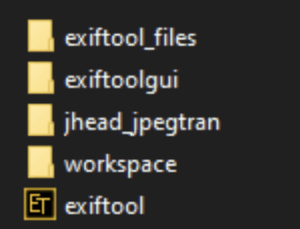
2. Download ExifTool GUI
- Visit the GUI section at exiftool.org/gui/
- Download the latest version of ExifToolGUI.zip
- Extract the files into the same folder as the base application
- Make sure both programs are in the same location so they work correctly
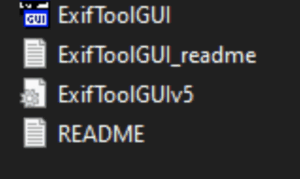
3. Open ExifTool GUI
Go to the folder where you extracted ExifTool GUI and double-click ExifToolGUI.exe. The graphical interface shows a file browser for selecting images.
Place your images inside the tool's folder for better results.
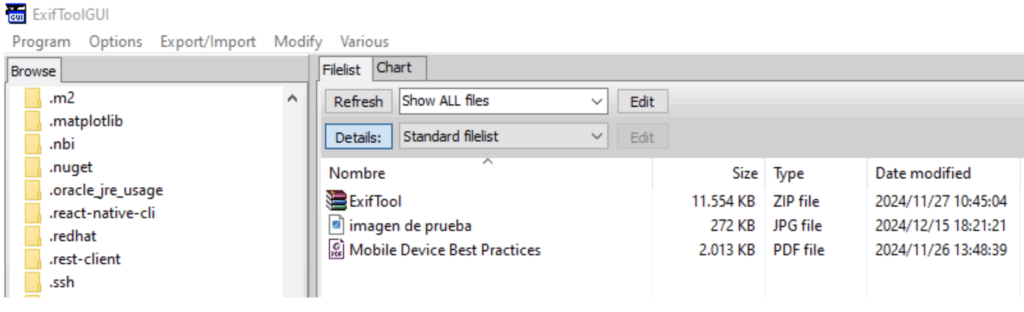
4. Read metadata with ExifTool GUI
Open ExifToolGUI.exe from your extraction folder. The interface shows a browser for selecting the files to analyze or modify.
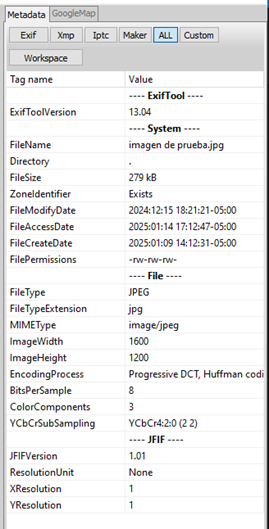
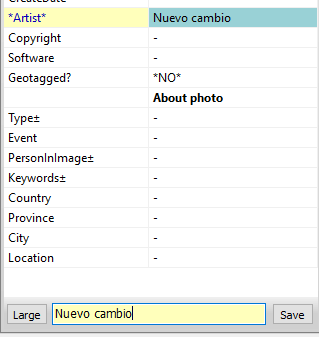
5. Edit a metadata field
- Click Workspace (top right) to see the editable fields
- Modify the fields you want in the lower section
- Click save to keep the changes
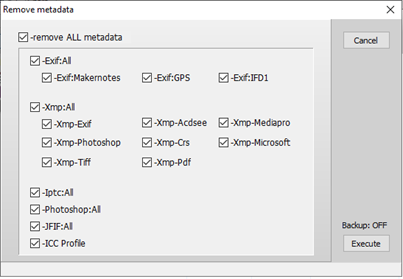
Remove all metadata
- Select the file and click Modify from the main menu
- Choose the "Remove metadata" option
- Check all the fields you want
- Click the execute button
Additional tips
- ExifTool GUI is Windows only
- You can process several files at once
- Learn the GUI shortcuts for a more efficient workflow