1. What does encrypting a computer mean?
Encrypting a computer means protecting the information stored on its disk so that other people cannot read it without the corresponding password or key. If you lose your computer or it is stolen, encryption helps prevent access to your files.
Encryption mainly protects information when the computer is turned off. On its own, it does not prevent viruses, password theft or access to an open session.
2. Before you start
- Back up your important files.
- Use a strong password. You can generate and store it with a password manager such as KeePassXC.
- Where applicable, store the recovery key in a safe place, separate from the computer.
- Plug the computer in: the first encryption can take several hours.
Important: if you forget your password and lose the recovery key, there will be no way to recover your files, not even with technical help. If it is an organization’s computer, check with the person in charge of IT support first.
3. Encrypting a Windows computer
Option A: Device encryption (Windows 11)
It may be available even on Windows 11 Home, as long as the computer meets the requirements.
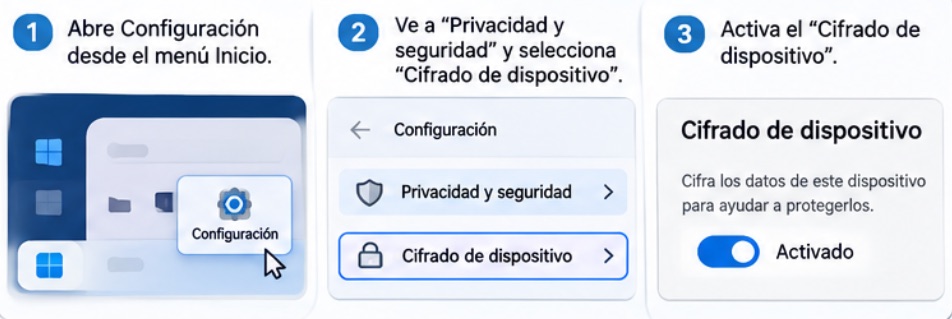
- Open Start → Settings.
- Go to Privacy & security → Device encryption.
- If the option appears, turn it on.
- Wait for the process to finish.
- Check that it is turned on and that you can access the recovery key.
Some computers come already encrypted. If the option does not appear, the computer may not meet the requirements. Keep in mind that if you sign in with a Microsoft account, the recovery key is automatically saved to that account (on Microsoft’s servers); consider whether that is acceptable in your risk context.
Option B: BitLocker (Windows 10 and 11 Pro, Enterprise and Education)
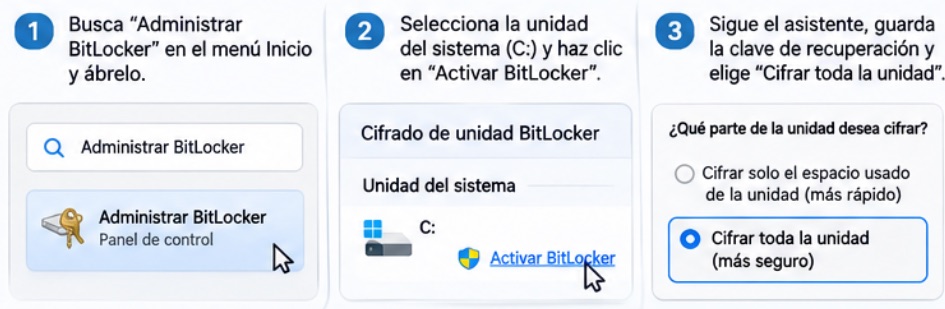
- Open Start and search for Manage BitLocker.
- Select the system drive, usually C:.
- Click Turn on BitLocker.
- Follow the instructions and save the recovery key. You can print it or save it to a file or USB drive that is not on the same computer.
- Select Encrypt entire drive if the computer has already been used.
- Start the encryption and wait for it to finish.
To check the status, open Command Prompt as administrator and run manage-bde -status: the drive should show Protection On.
Option C: VeraCrypt (free and open source)
VeraCrypt can encrypt the system on compatible computers, even with Windows Home. Official site: veracrypt.io.
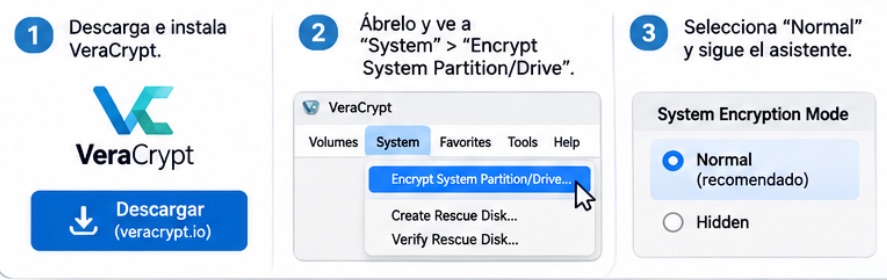
- Download and install VeraCrypt from its official site.
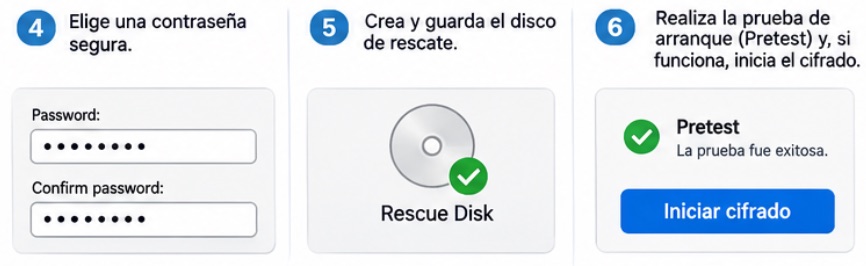
- Open the program and select System → Encrypt System Partition/Drive.
- Select Normal and follow the wizard.
- Choose a strong password.
- Create and save the requested rescue disk.
- Run the boot test (Pretest): the computer will restart and ask for your password.
- If the test works, start the encryption and wait for it to finish.
Caution: VeraCrypt modifies the boot process. Make a full backup and check compatibility. Do not apply it directly to a drive already encrypted with BitLocker or Device encryption without technical advice.
4. Encrypting a Mac (macOS)
Tool: FileVault, built into macOS.
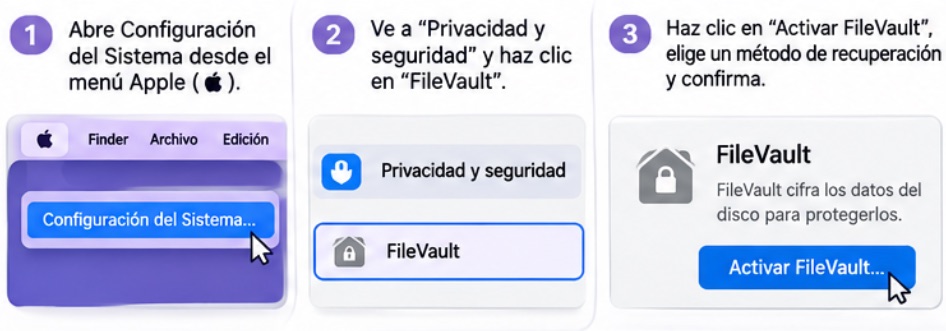
- Click the Apple menu.
- Open System Settings → Privacy & Security.
- Find FileVault and click Turn On FileVault.
- Enter your user password if prompted.
- Choose the recovery method: through your iCloud account or with a recovery key that you will need to store.
- Confirm and wait for the encryption to finish.
- Check on the same screen that FileVault shows as turned on.
If you choose iCloud, recovery depends on your Apple account. In higher-risk contexts, a recovery key kept by you outside the computer is preferable. On modern Macs, storage may be hardware-encrypted from the start; FileVault adds protection tied to your login credentials.
5. Encrypting a Linux computer
Usual tool: LUKS. In many distributions, it is easiest to turn on encryption while installing the system.
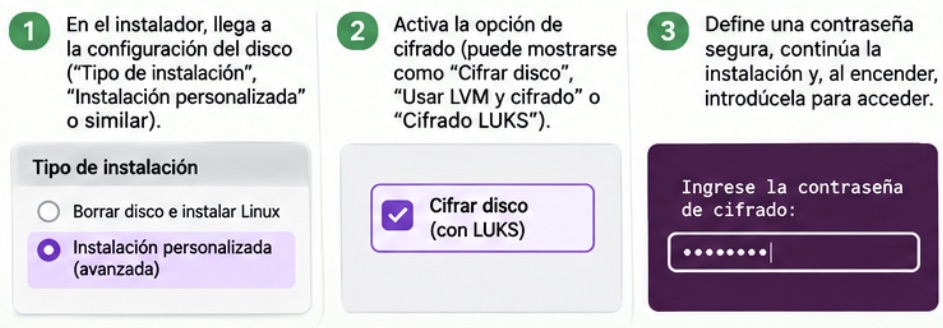
- Start the Linux installer from a USB drive.
- Continue until you reach the disk setup.
- Look for Encrypt disk, Use LVM and encryption or LUKS encryption (the name varies).
- Turn on encryption and enter a strong password.
- Save any recovery key offered.
- Continue the installation and, when you turn on the computer, enter the encryption password when prompted.
Important: reinstalling Linux can erase all your files. Make a backup first. Encrypting an existing installation requires more advanced steps, and it is advisable to ask for technical support.
Check whether Linux is already encrypted
- Open a terminal and run
lsblk -f. - Look for a partition of type crypto_LUKS and confirm that it corresponds to the system or the data you want to protect.
6. Recommendations after encrypting
- Shut down the computer when traveling or when there is a risk of theft or confiscation (sleep mode is not enough).
- Set up automatic screen lock.
- Do not share your password or recovery key.
- Keep the operating system up to date.
- Make regular backups and protect them too.
- In organizations, agree on how to safeguard recovery keys.
Remember: encryption is a fundamental digital security measure, but it must go hand in hand with strong passwords, updates and good practices.