
1. Install Briar
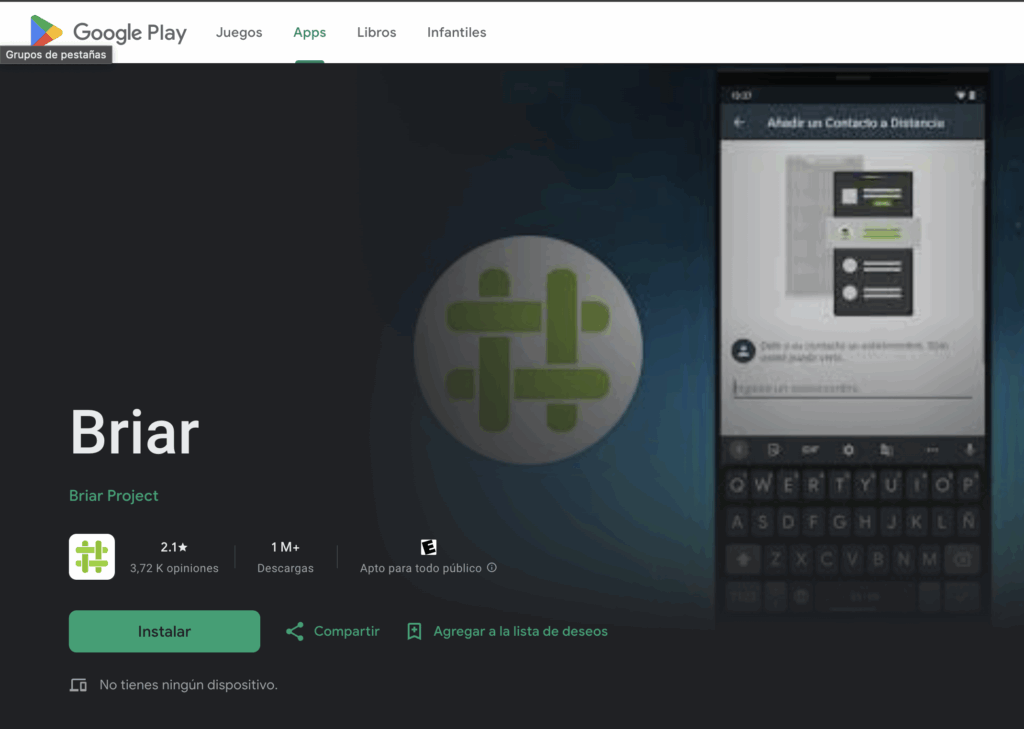
Download it from F-Droid or Google Play (Android only). Creating an account only requires a username and a password, no phone number or email. All content is encrypted locally on your device.
2. Create an account
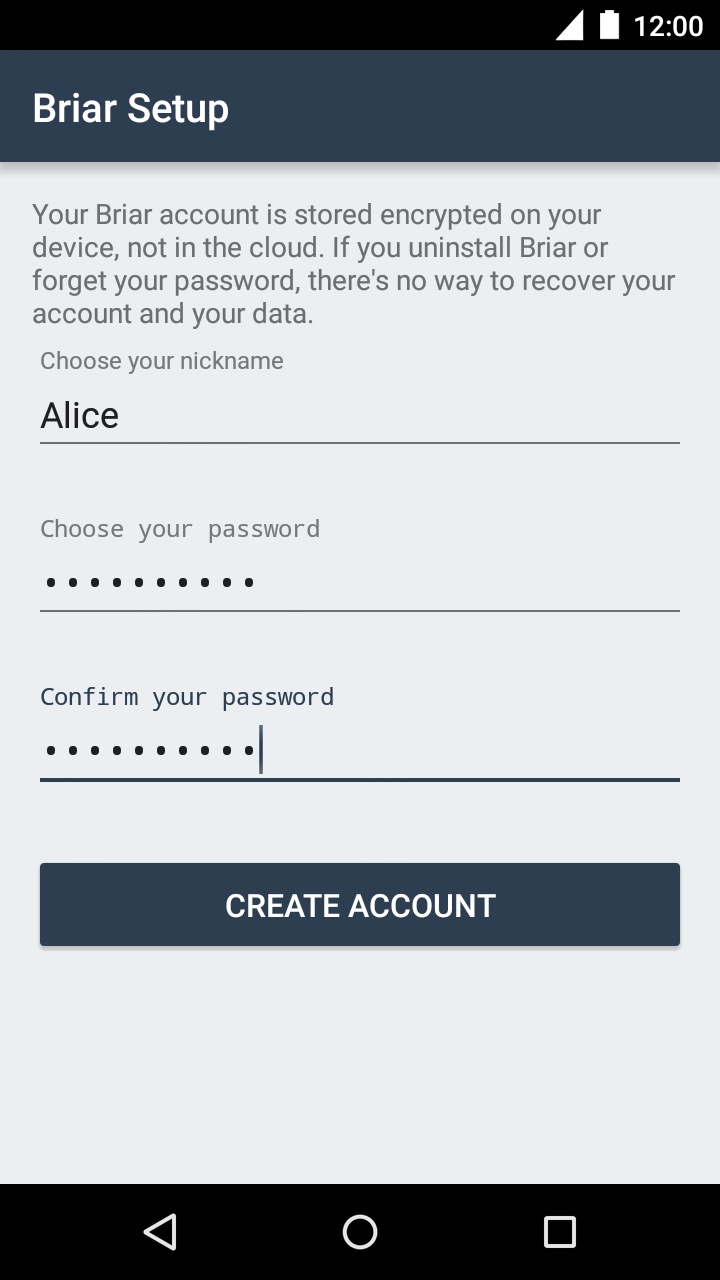
On first launch, set up an account with a nickname and a secure password (minimum 8 characters).
3. Add contacts
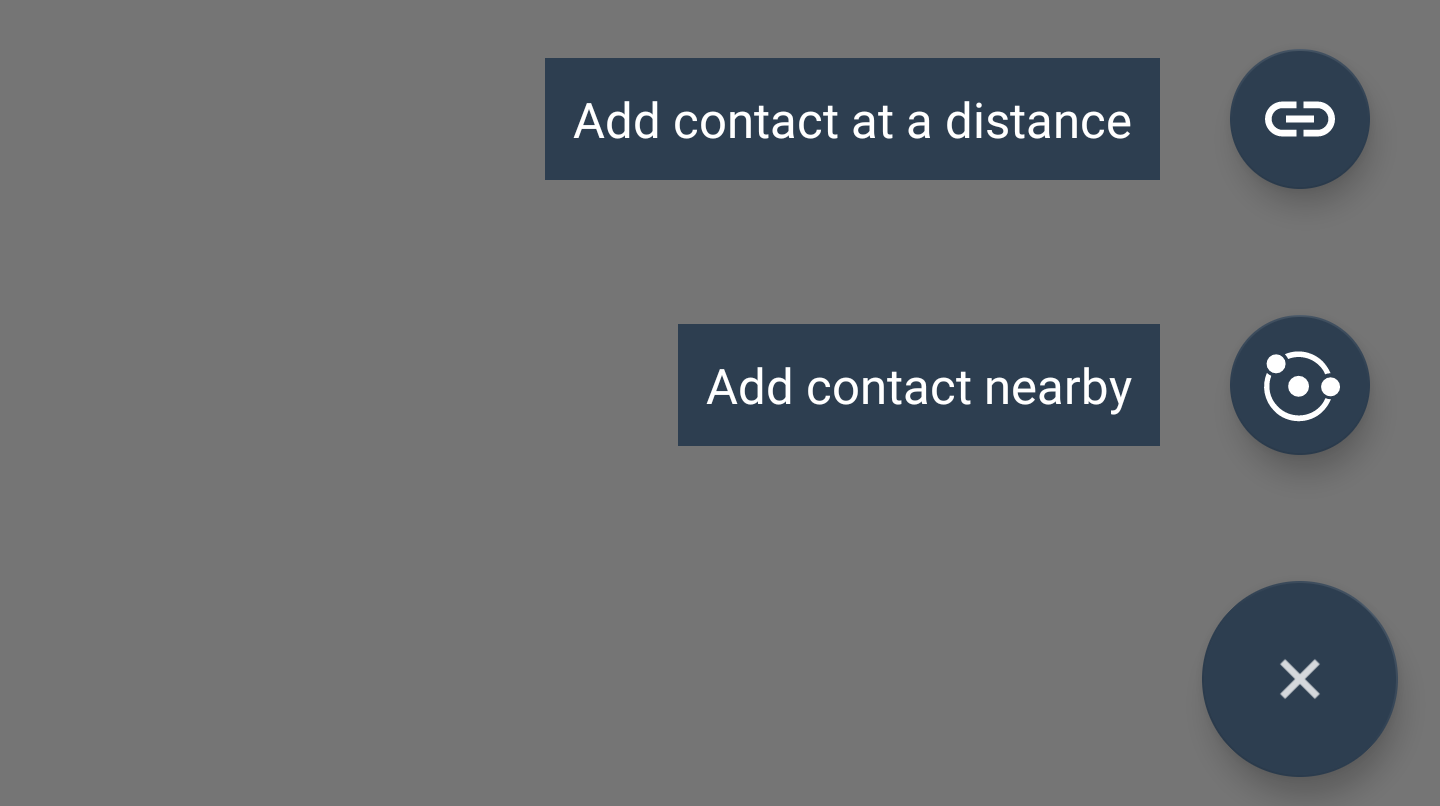
Tap the "+" icon on the contact list to access two options: add remote or nearby contacts.
4. Add remote contacts
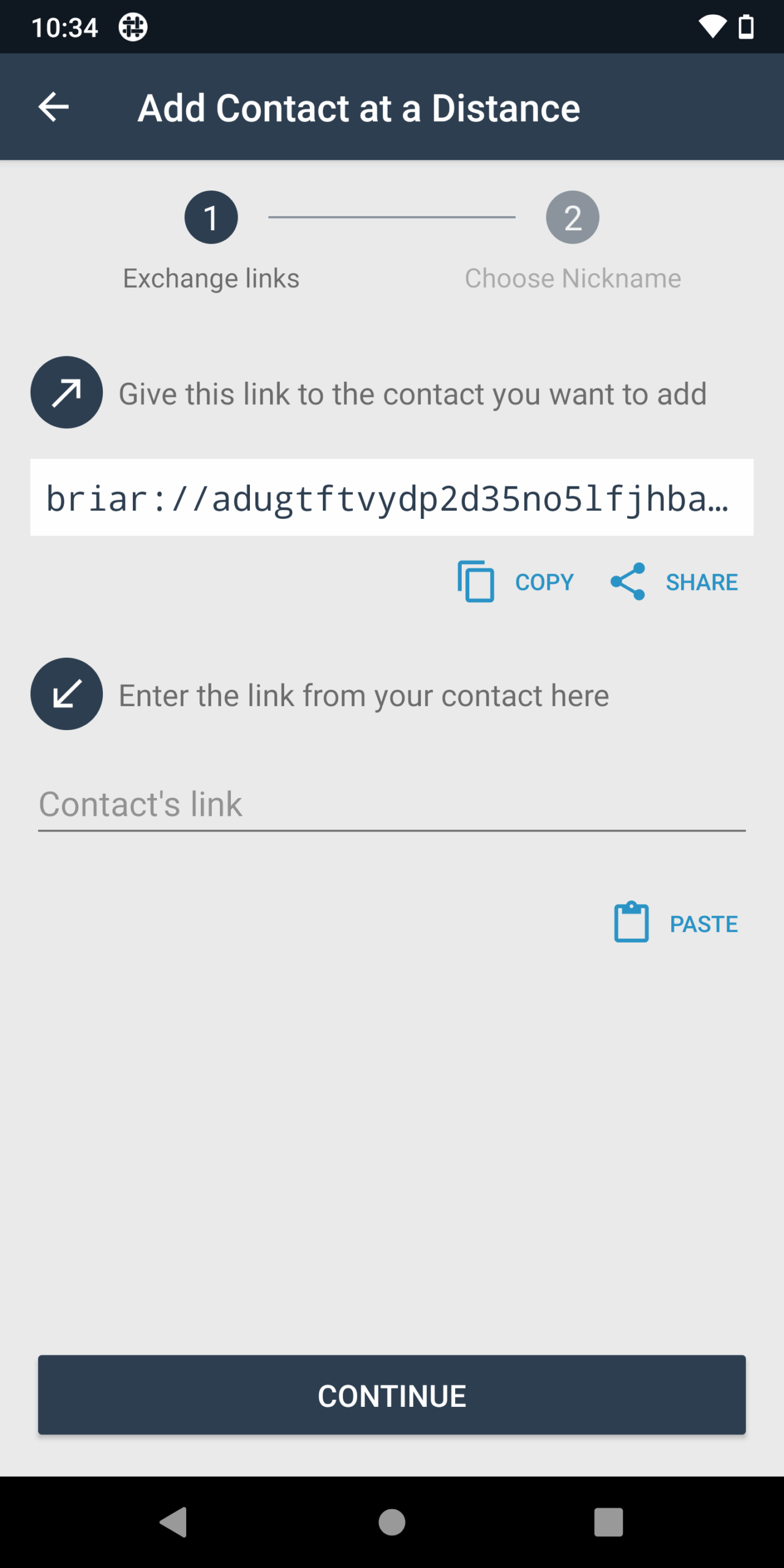
Share your briar:// link with the contact. Paste their link into the text field and click "Continue". Briar will keep trying to connect regularly until it succeeds.
5. Add nearby contacts
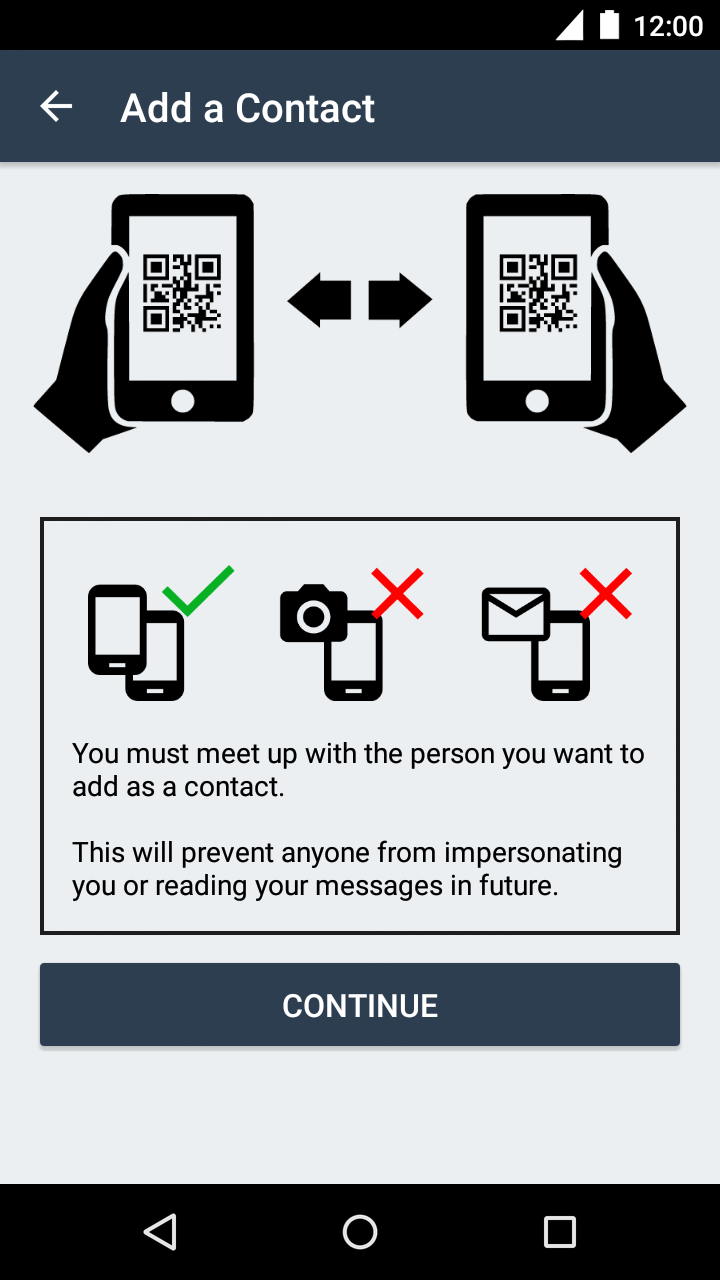
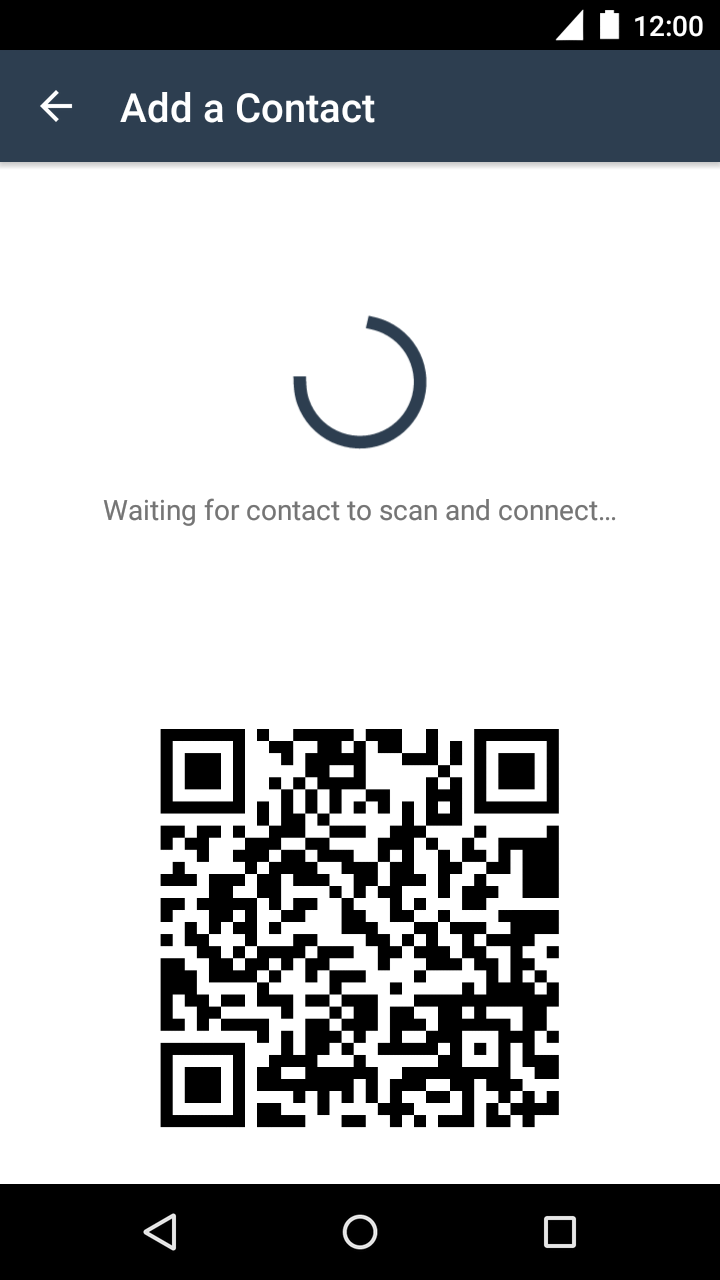
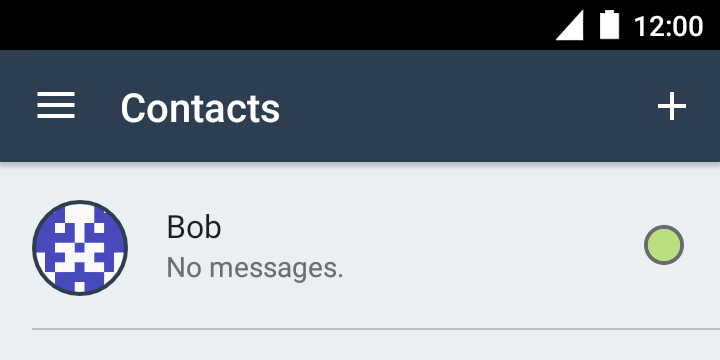
Meet in person and scan each other's QR codes. The devices exchange information within seconds and add the contact automatically.
6. Messaging
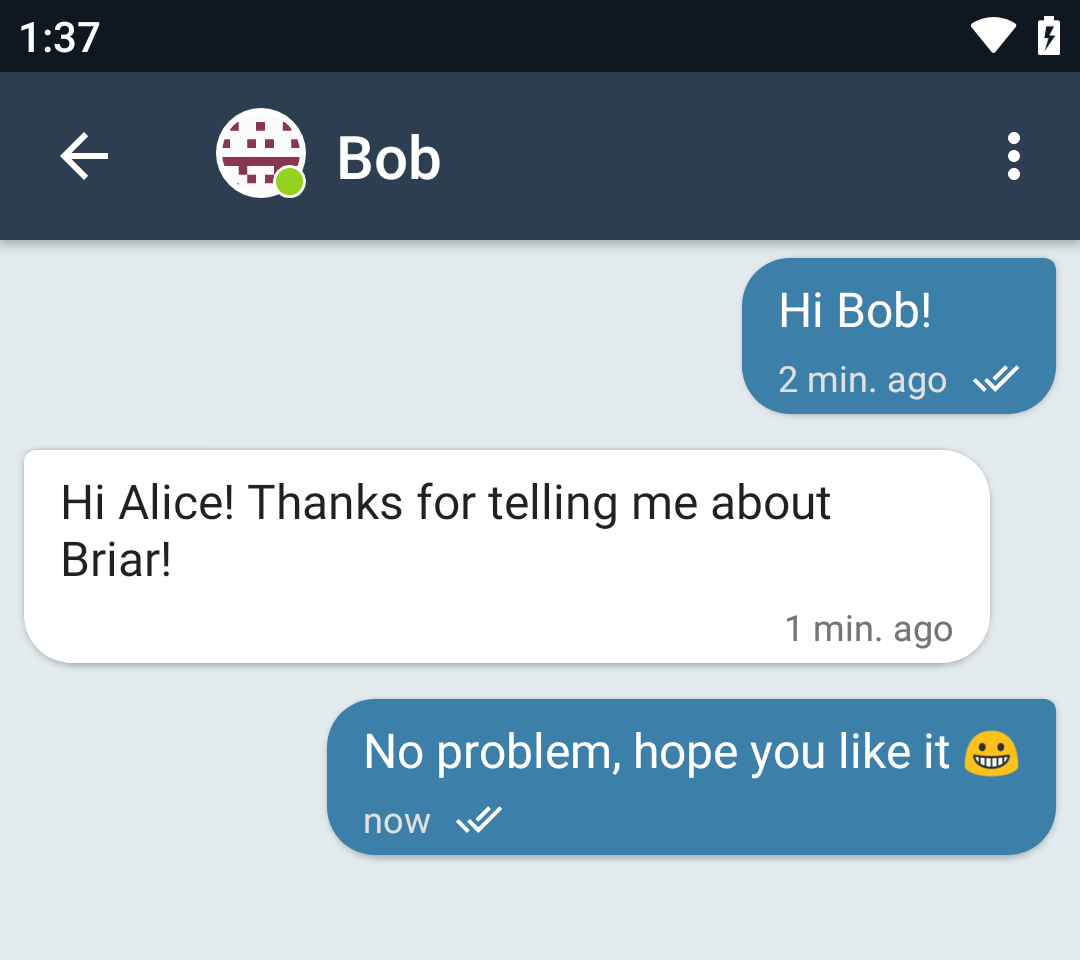
Tap a contact's name to send them private messages. All messages in Briar are end-to-end encrypted.
7. Private groups
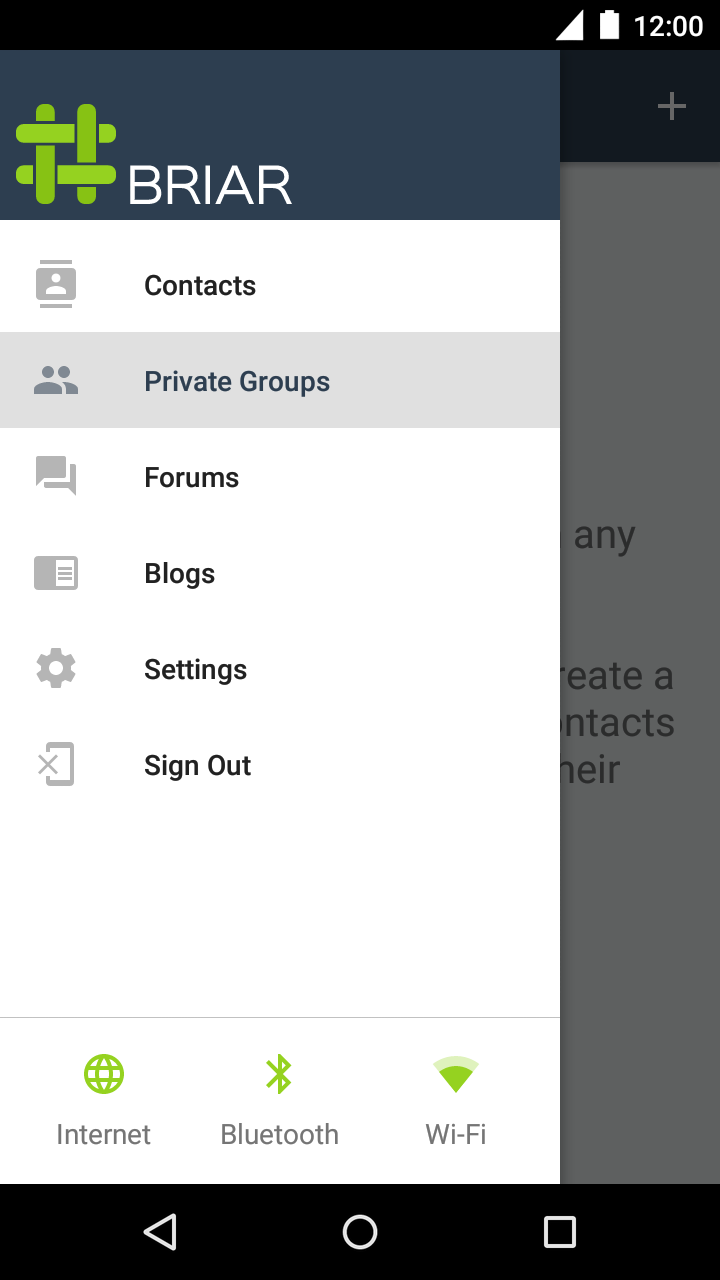
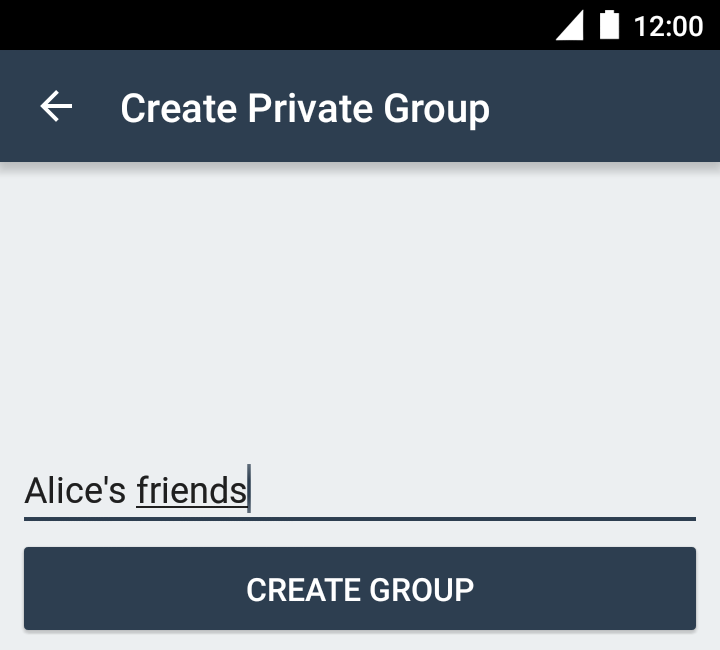
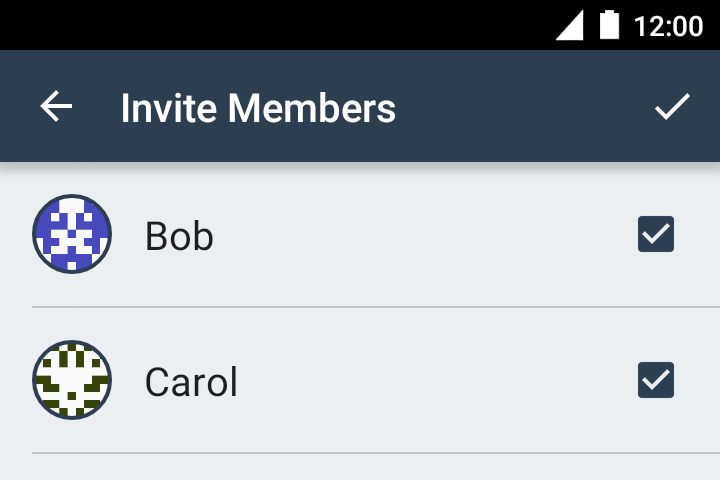
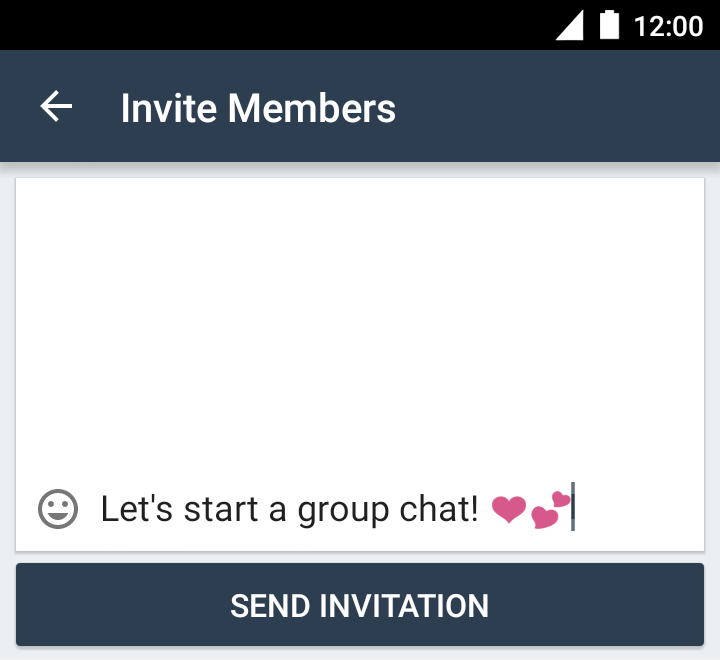
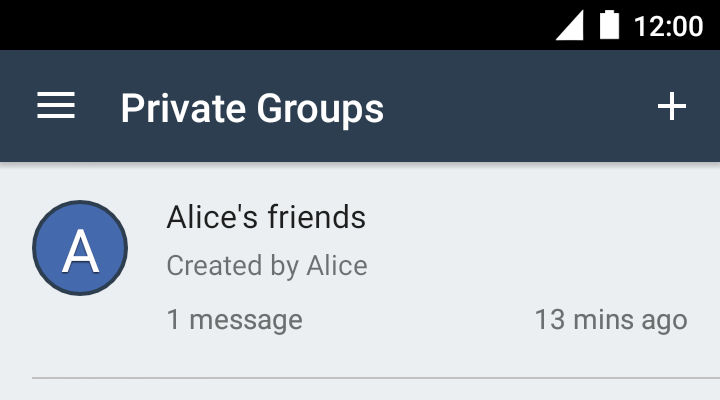
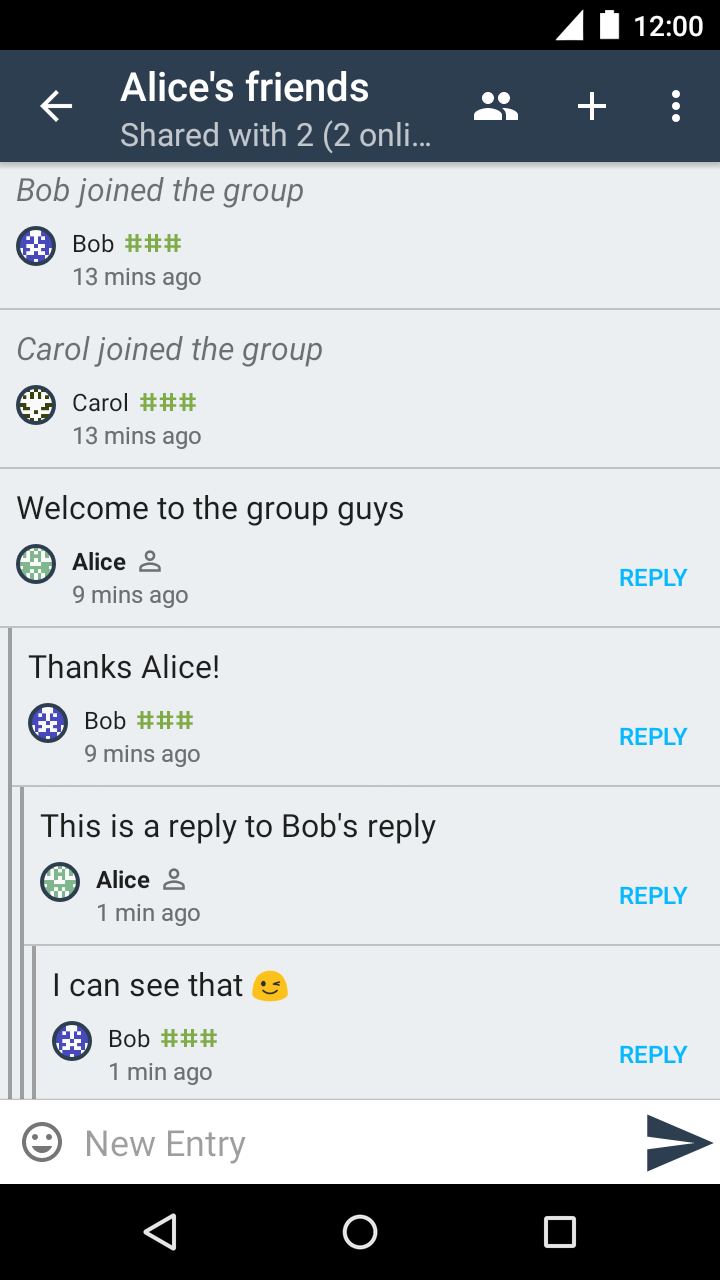
Go to the main menu, select "Private groups" and create a new one by naming it, selecting contacts and sending invitations.
8. Connection settings
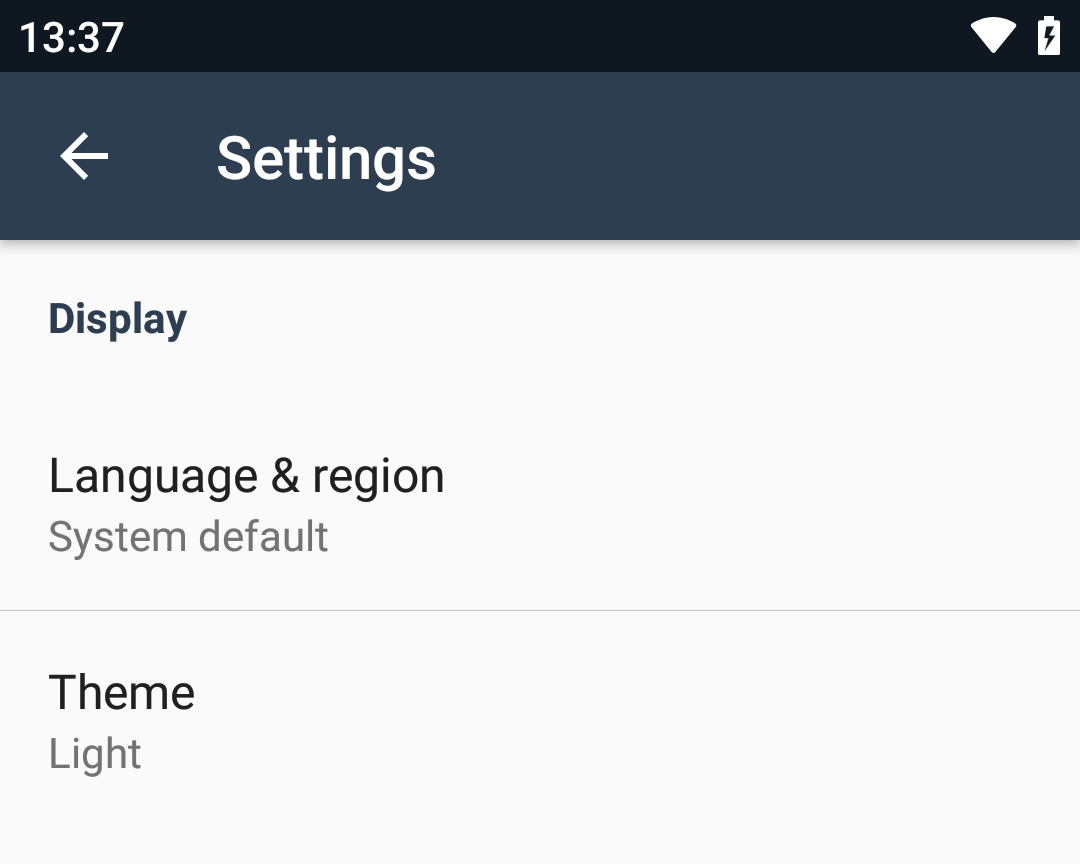
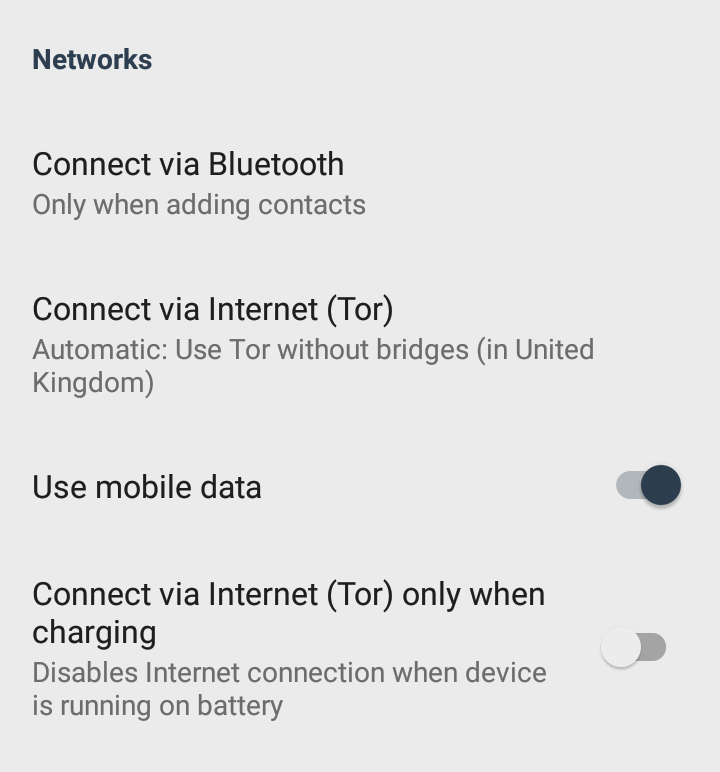
Go to Settings to set the connection modes: Tor (with or without bridges), Wi-Fi restriction, mobile data control, and connect only while charging.
9. Screen lock
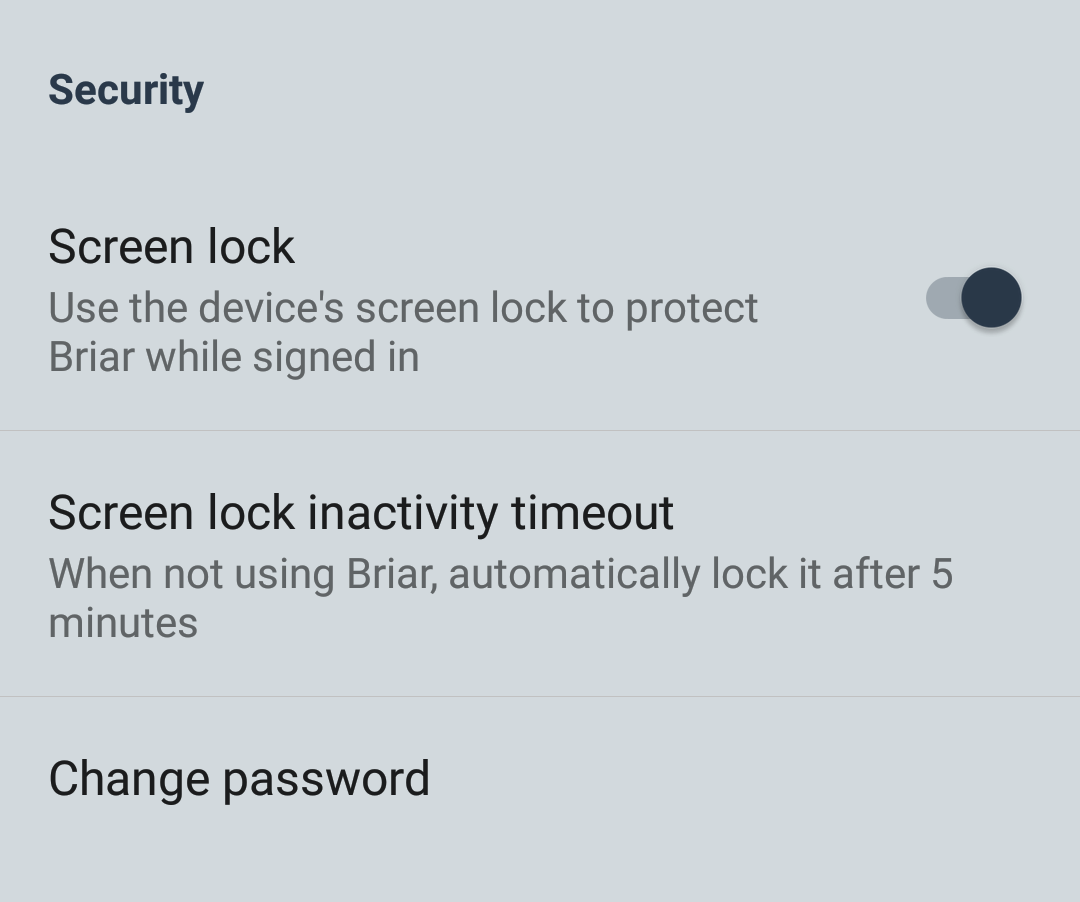
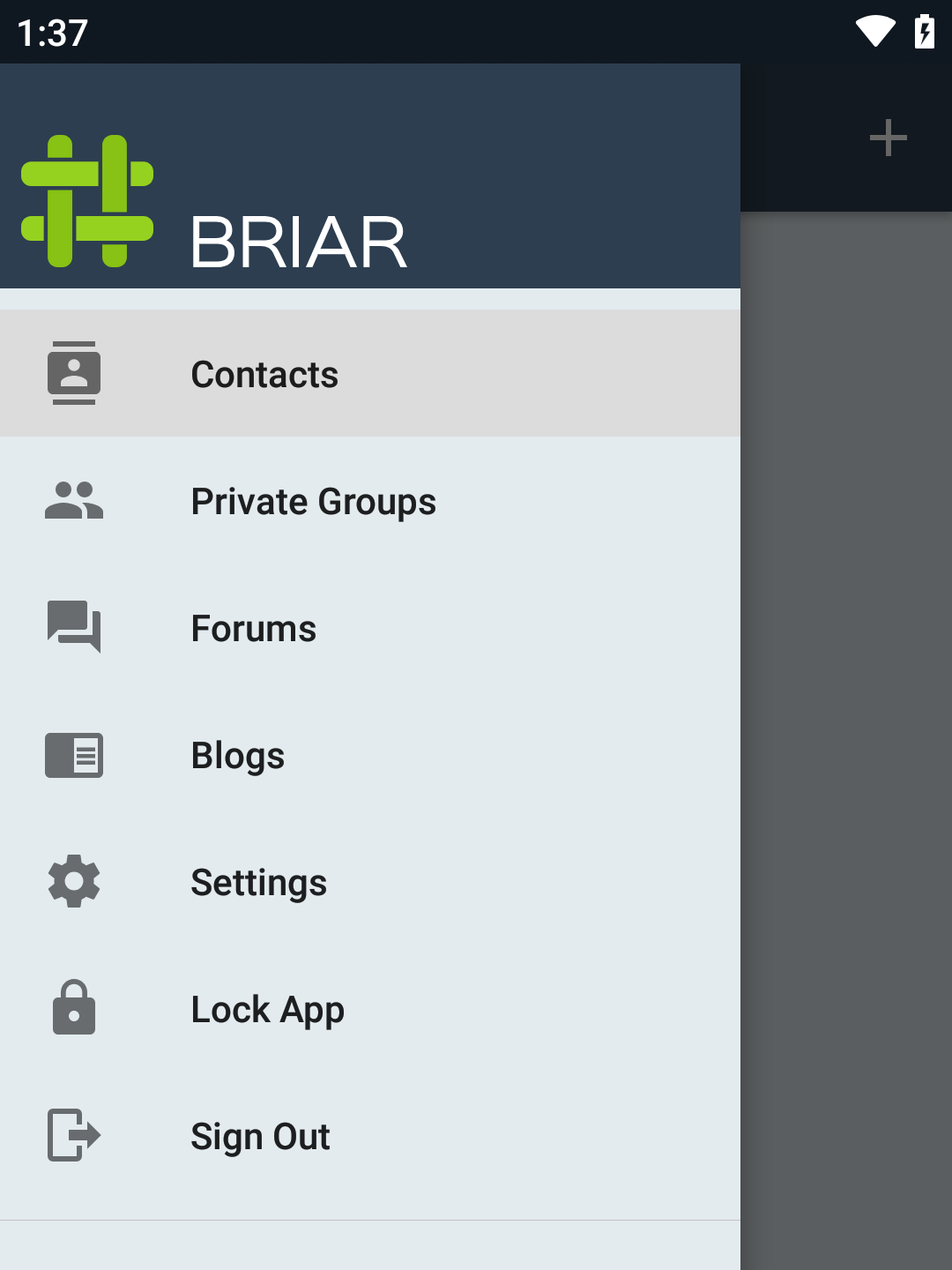
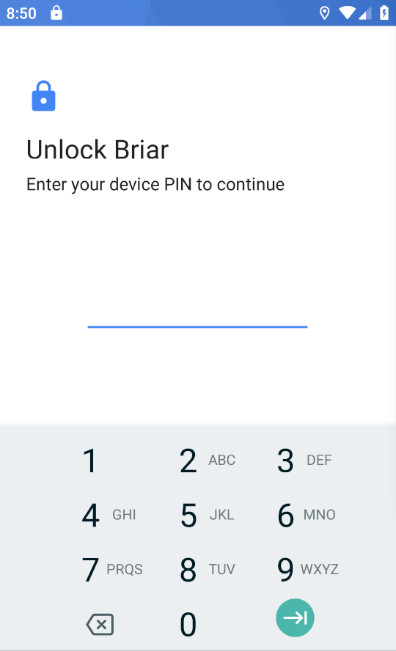
Turn on screen lock in the Security section to protect your privacy. It uses your device's existing PIN, pattern or password. Once enabled, a "Lock app" option appears in the main menu.
Key considerations
- Available for Android only
- Drains battery quickly with Bluetooth/direct Wi-Fi
- No cloud sync: if you uninstall the app, you lose the data
Final tips
- Keep the app updated
- Connect flexibly by combining several methods
- Set up battery-saving options
- Turn on the app lock
- Always verify your trusted contacts
- Practice using Briar before a critical situation